> For the complete documentation index, see [llms.txt](https://docs.sharinpix.com/llms.txt). Markdown versions of documentation pages are available by appending `.md` to page URLs; this page is available as [Markdown](https://docs.sharinpix.com/best-practices/working-with-images-with-salesforce-field-service.md).
# Working with Images with Salesforce Field Service
## Upload Images from Field Service mobile App
Salesforce Field Service has its own mobile app with very few capabilities to integrate with 3rd Party Apps.
SharinPix uses all the available possibilities at this time and will keep on integrating the new capacities as soon as they will be delivered by Salesforce.
To work with Salesforce Field Service mobile App, users will have to install the SharinPix mobile App on their mobile device and either use:
* an integration that includes the usage of an App Extension (this will appear as a menu item in the central bolt menu)
* or an integration including a clickable item in a flow (which appear as a clickable text in the flow screens)

In both cases, it will open the SharinPix mobile App and offer direct access to the camera to take pictures and have them uploaded in the background.
The SharinPix mobile App can fully work offline and give access to all the SharinPix features including annotation, tagging and addition of Title & Description on images.
This integration uses a deeplink URL which can be personalized with different parameters as described here: [SharinPix mobile App - Deeplink syntax](/documentation/mobile-app/sharinpix-mobile-app-deeplink-syntax.md).
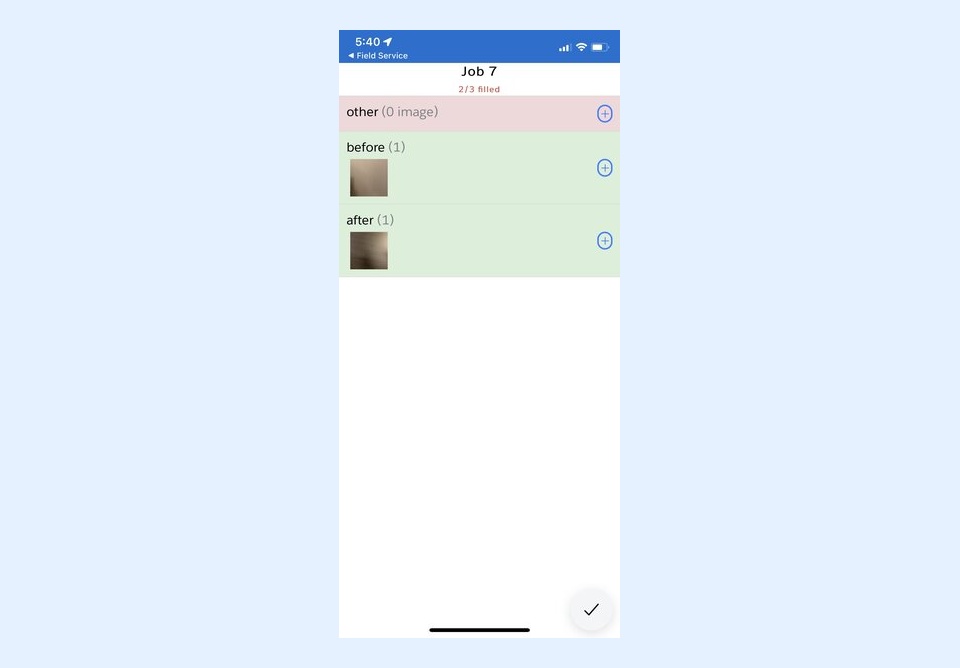
**The Best Practice is to personalize the deeplink URL to prohibit access to the roll, to force tags to be automatically added to images or even to add a checklist to show areas or actions to fill with images.**
## Merge images in generated Service Report PDF
If [SharinPix Image Sync is setup](/documentation/image-sync/setup-sharinpix-image-sync.md), each picture uploaded to SharinPix will have a corresponding [SharinPix image record](/documentation/image-sync/the-sharinpix-image-object.md) created accordingly.
A webhook is required by the Field Service implementation in order to make SharinPix Image Sync work for images uploaded from the SharinPix mobile App. This could be done by following the steps described in this article: [Image Sync for pictures uploaded via SharinPix Mobile App](/documentation/image-sync/image-sync-for-pictures-uploaded-via-sharinpix-mobile-app.md).
Once done, [those images could be used as a list in the Service Report template](/documentation/integrations/salesforce-field-service/display-images-in-service-report-salesforce-field-service-fsl.md). These images will then be available in the generated PDF.
.png?alt=media\&token=62ce272f-11e6-4cc9-a4ca-17413c21fa55)
You can also read the following articles to setup usage of SharinPix for Salesforce Field Service :
* [Using on Salesforce Field Service App (Field Service Lightning)](/documentation/features/main-integration/using-on-salesforce-field-service-app-field-service-lightning.md)
* [Integration of SharinPix App with SFS (FSL) App using App Extension](/documentation/integrations/salesforce-field-service/integration-of-sharinpix-app-with-sfs-fsl-app-using-app-extension.md)
* [Integration of SharinPix App with SFS (FSL) App using Flows](/documentation/integrations/salesforce-field-service/integration-of-sharinpix-app-with-sfs-fsl-app-using-flows.md)
* [Display Images in Service Report (Salesforce Field Service / FSL)](/documentation/integrations/salesforce-field-service/display-images-in-service-report-salesforce-field-service-fsl.md)
Please note that if you are using SharinPix in a flow on a newly created record, you may have to use a specific configuration as the token value (which is an important security configuration required to make SharinPix work on Field Service mobile App) is only available on existing records.
In that case you should follow those steps :
[Add Photos on a Newly-Created Record Using Field Service Mobile Flow and SFS (FSL) Mobile (Developer-Oriented)](broken://spaces/5EvYRrLbUyvRh8o1jmMG/pages/6B3e6nsTLDh8eD1cYMbq)
---
# Agent Instructions
This documentation is published with GitBook. GitBook is the documentation platform designed so that both humans and AI agents can read, navigate, and reason over technical content effectively. Learn more at gitbook.com.
## Querying This Documentation
If you need additional information that is not directly available in this page, you can query the documentation by asking a question.
Perform an HTTP GET request on the following URL with the `ask` and `goal` query parameters:
```
GET https://docs.sharinpix.com/best-practices/working-with-images-with-salesforce-field-service.md?ask=&goal=
```
`ask` is the immediate question: it should be specific, self-contained, and written in natural language.
`goal` is what the user is ultimately trying to achieve, the reason they need the answer. Sharing it helps GitBook give you a better, more relevant answer. A goal is most helpful when it describes the outcome the user wants rather than restating the question. For example, with `ask=how do I create an API token`, a goal like `automate deployments from our CI pipeline` lets GitBook tailor the answer to that use case.
The response will contain a direct answer to the question and relevant excerpts and sources from the documentation.
Use this mechanism when the answer is not explicitly present in the current page, you need clarification or additional context, or you want to retrieve related documentation sections.