> For the complete documentation index, see [llms.txt](https://docs.sharinpix.com/llms.txt). Markdown versions of documentation pages are available by appending `.md` to page URLs; this page is available as [Markdown](https://docs.sharinpix.com/documentation/access-and-security/customizing-your-sharinpix-global-settings.md).
# Customizing your SharinPix Global Settings
The Global Settings allow you to set specific permissions for everybody in your organization. First, we'll walk through getting to the Global Settings, via the SharinPix Administration Dashboard. Then we'll check out some of the basic features that you can enable through the Global settings.
For notification recipients, see [Notification settings](/documentation/access-and-security/notification-settings.md).
{% hint style="danger" %}
**Note:**
The SharinPix Album abilities available on the Global Settings can also be configured using [SharinPix Permissions](/documentation/access-and-security/sharinpix-permission-object-how-to-create-and-assign-custom-permission.md).
The SharinPix Global Settings configuration is applied on albums by default **unless** a SharinPix Permission has been assigned to the album.
**However, for security reasons, we strongly advise using a SharinPix Permission to control album abilities instead of the SharinPix Global Settings.**
{% endhint %}
## Access and configure the SharinPix Global Settings
To access the *SharinPix Global Settings* from your Organization, proceed as follows:
* Click on the **App Launcher**
* Enter SharinPix Settings in the search bar and select **SharinPix Settings**
* On the SharinPix Settings page, click on the **Go to administration dashboard** button

* *You may have to sign in again to authenticate your credentials.*
* Next, click on the **Settings** tab to access the Global Settings

To configure the Global Settings, click on the **Edit Organization** button.

Example of the User Interface in the SharinPix Settings:
.png?alt=media)
* To enable/disable album abilities, check/uncheck the checkboxes accordingly.
* Click on the **Update Organization** button located at the bottom of the page to save the changes.
## Overview of the SharinPix Global Settings parameters
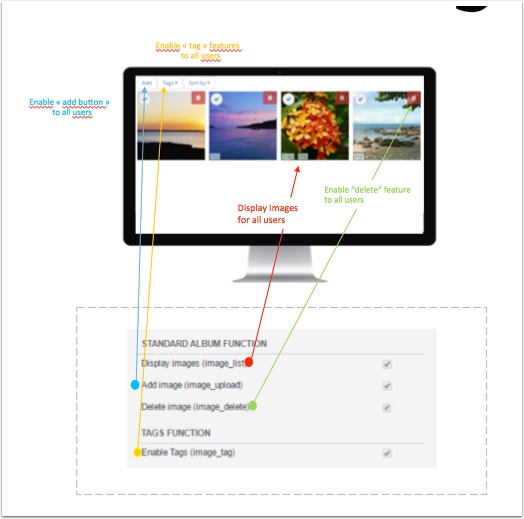
Global Settings give users access to the settings below:
* Add Button - for all users
* Display Images from all Users
* Add a tag function
* Delete button
Adding tags to the photos:
Add a tag Icon:

Tag List with Add a Tag link:

Add a Tag:

Create and Display Tags:

Photo with Tags:
**In fullscreen, all the tool icons are visible:**
1\. Tag the image
2\. Download the image
3\. Open the image in fullscreen on another tab
4\. & 5. Rotate the image
6\. & 7. Flip the image
8\. Duplicate the image
9\. Crop the image
10\. Hide/display the image annotations
11\. Annotate the image
12\. Set the image quality
13\. View image information
14\. Close the fullscreen view
15\. Image zoom slider

**Edit Tools - have some fun here**
1. Erase
2. Size of mark
3. Color of mark
4. Text box
5. Marker
6. Line
7. Save
8. Exit
9. Rectangle
10. Circle
11. Arrow
12. Double Arrow

## Menu Command
The **Menu Command** section provides some options as depicted in the images below:

These options are available in the **Thumbnail Menu** as shown below:

{% hint style="info" %}
For more information about how to access the **Thumbnail Menu** , refer to the following article: [**Thumbnail View - The menu**](/documentation/features/user-interface/thumbnail-view-the-menu.md)
{% endhint %}
## Album Images Sort
The **Album Images Sort** section provides options that can be used to apply sorting on the images found in an album.
## Privacy Settings
The **Privacy** section permits you to set whether to ask the user to access the geolocation or not.
## Miscellaneous
This section provides the following options:
* No image selection after upload
* By default, after the first upload to an album, all the images uploaded are selected. After applying the **No images selection after upload** options, the images will not be selected after the first upload.
* Download zip
* The **Download zip** option enables the user to download the images in a zip file.

* Salesforce field on sObject SharinPixImage\_\_c with custom image filename for zip download
* This parameter allows us to download the image with a custom filename. The value of the custom filename should be stored in a Salesforce field on the **SharinPixImage\_\_c** sObject.
* The **Salesforce field API name** should then be used as the value for the parameter **download\_custom\_filename**, for example: download\_custom\_filename: 'CustomFilename\_\_c', where *CustomFilename\_\_c* refers to the API name of the Salesforce field storing the value for the custom filename.
* Autosave annotations
* By default, the save button has to be clicked to save annotations on the image. After applying the **Autosave annotations** option, annotations are saved automatically as they are added.
* Handle to duplicate annotations
* The **Handle to duplicate annotations** allows duplication of an annotation.
* Zoom slider
* The **Zoom slider** provides a slider to zoom in and zoom out of the image.
* Image color adjustment
* The **Image color adjustment** option enables the **color\_adjustment** ability which allows the user to adjust the brightness, contrast and saturation.
{% hint style="info" %}
**Information:**
Global Settings allow the system administrators to choose which features to be made available for every organizational user by default. After that, you can restrict "who sees what" using [SharinPix Permission records](/documentation/access-and-security/sharinpix-permission-object-how-to-create-and-assign-custom-permission.md) or [SharinPix Permission Parameters](/documentation/access-and-security/sharinpix-permission.md).
{% endhint %}
---
# Agent Instructions
This documentation is published with GitBook. GitBook is the documentation platform designed so that both humans and AI agents can read, navigate, and reason over technical content effectively. Learn more at gitbook.com.
## Querying This Documentation
If you need additional information that is not directly available in this page, you can query the documentation by asking a question.
Perform an HTTP GET request on the following URL with the `ask` and `goal` query parameters:
```
GET https://docs.sharinpix.com/documentation/access-and-security/customizing-your-sharinpix-global-settings.md?ask=&goal=
```
`ask` is the immediate question: it should be specific, self-contained, and written in natural language.
`goal` is what the user is ultimately trying to achieve, the reason they need the answer. Sharing it helps GitBook give you a better, more relevant answer. A goal is most helpful when it describes the outcome the user wants rather than restating the question. For example, with `ask=how do I create an API token`, a goal like `automate deployments from our CI pipeline` lets GitBook tailor the answer to that use case.
The response will contain a direct answer to the question and relevant excerpts and sources from the documentation.
Use this mechanism when the answer is not explicitly present in the current page, you need clarification or additional context, or you want to retrieve related documentation sections.