> For the complete documentation index, see [llms.txt](https://docs.sharinpix.com/llms.txt). Markdown versions of documentation pages are available by appending `.md` to page URLs; this page is available as [Markdown](https://docs.sharinpix.com/documentation/image-sync/setup-sharinpix-image-sync.md).
# Setup SharinPix Image Sync
{% hint style="info" %}
In this article, we will demonstrate how to setup the SharinPix Image Sync. To do so we will:
1. [Create a lookup relationship field on the SharinPix Image object](#creation-of-a-lookup-relationship-field)
2. [Configure the SharinPix Image Sync custom metadata](#configure-the-custom-metadata)
3. [Assign the SharinPix Image Sync Permission Set to the users](#assign-sharinpix-image-sync-permission-set)
{% endhint %}
## Creation of a lookup relationship field
Depending on the Object you want to use SharinPix Image Sync on, you must create a lookup relationship field on the SharinPix Image Object which links to the parent object. This demo will make use of the Contact object.
Follow the steps below:
* Go to **Setup** then access **Object Manager**
* Type image in the search bar, press Enter and click **SharinPix Image**
* On the left menu, click on **Fields and Relationships** and then click on **New**

For the new field:
* Select **Lookup Relationship** as **Data Type** then click **Next**
* For the field **Related To**, select **Contact** then click **Next**
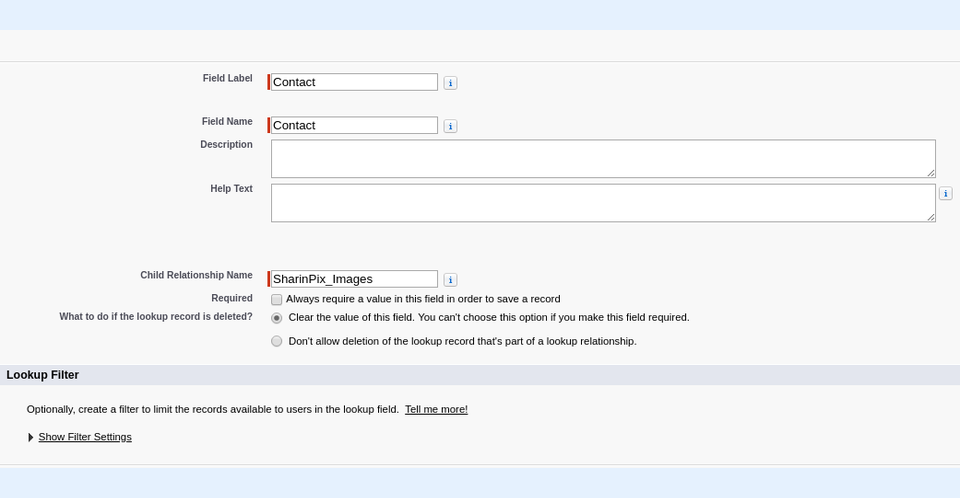
* You will be directed to the page below:
* The field **Field Label** will be auto-populated
* Click anywhere outside the text box for the field **Field Name** to auto-populated it (in case it is not auto-populated already)
* Leave the other fields as default
* Proceed to the next steps and finally save the new relationship.
When you take a look back at the **Fields & Relationships** section, you should see the new relationship displayed as shown in the figure below.
* Copy the field name: **Contact\_\_c** as we will need this in our next step.
{% hint style="warning" %}
**Note:**
Ensure to provide at least read access to the lookup field (Contact\_\_c in this case) for all users viewing/creating SharinPix Image records.
{% endhint %}
## Configure the custom metadata
This section demonstrates how to configure the SharinPix Image Sync custom metadata.
To do so, follow the steps below:
* Go to **Setup** and type metadata, then click on **Custom Metadata Types**
* Select the **Manage Records** action next to the label **SharinPix Sync Setting**
* Click on the button **New** to create a new record. You will be directed to the page below:
* For the field **Label**, enter **Image Sync on Contact**
* The field **SharinPix Sync Setting Name** is an auto-populated field. Click anywhere outside its corresponding text box to auto-populate it.
* For the field **Parent Object Name**, enter the **object API name** in our case it is **Contact**
* For the field **Parent Field Name**, enter the field name of the lookup relationship field created in the previous section, that is **Contact\_\_c** (Remember the field name we asked you to copy? You can now paste it here)
* Click **Save** when done.
{% hint style="warning" %}
**Note:**
You should be careful when entering values for the fields **Parent Object Name** and **Parent Field Name**.
* The field **Parent Object Name** refers to the object's API Name. If you are using a custom object, ensure the API name is entered correctly. For example, if you are using a custom object named **My Custom Object**, the value to be entered for the field **Parent Object Name** will be **My\_Custom\_Object\_\_c**.
* The field **Parent Field Name** on the other hand refers to the field name of the lookup relationship. You should ensure that the value entered for the field **Parent Field Name** matches the corresponding field name value in the lookup relationship.
{% endhint %}
### Assign SharinPix Image Sync Permission Set
Last but not least, to be sure your users have the right to create, edit, delete the SharinPix Image record through SharinPix Image Sync, you should assign them the "**SharinPix Image Sync Permission**" from Permission Sets in the Setup.
{% hint style="success" %}
**Tip:**
To be able to use SharinPix Image Sync on a SharinPix component, you should activate the Image Sync on the same component. In case you haven't performed this step yet, you can refer to the following articles to do so:
* [Enable Image Sync for Lightning](/documentation/image-sync/enable-image-sync-for-lightning.md)
* [Enable Image Sync for Classic](/documentation/image-sync/enable-image-sync-for-classic.md)
{% endhint %}
{% hint style="warning" %}
**Note:**\
\
Image Sync is checked by default for all components using this feature.
{% endhint %}
---
# Agent Instructions
This documentation is published with GitBook. GitBook is the documentation platform designed so that both humans and AI agents can read, navigate, and reason over technical content effectively. Learn more at gitbook.com.
## Querying This Documentation
If you need additional information that is not directly available in this page, you can query the documentation by asking a question.
Perform an HTTP GET request on the following URL with the `ask` and `goal` query parameters:
```
GET https://docs.sharinpix.com/documentation/image-sync/setup-sharinpix-image-sync.md?ask=&goal=
```
`ask` is the immediate question: it should be specific, self-contained, and written in natural language.
`goal` is what the user is ultimately trying to achieve, the reason they need the answer. Sharing it helps GitBook give you a better, more relevant answer. A goal is most helpful when it describes the outcome the user wants rather than restating the question. For example, with `ask=how do I create an API token`, a goal like `automate deployments from our CI pipeline` lets GitBook tailor the answer to that use case.
The response will contain a direct answer to the question and relevant excerpts and sources from the documentation.
Use this mechanism when the answer is not explicitly present in the current page, you need clarification or additional context, or you want to retrieve related documentation sections.



.png?alt=media&token=badc9578-175a-45ea-b5fb-3f008127917c)