SharinPix Image Transformation using a Flow (Admin-Oriented)

Overview

Sharinpix__TransformImage is an invocable Apex action that lets you apply SharinPix image transformations (such as resize, crop, or format) and automatically save the resulting image URL into a field on a record. Use it when you need a transformed version of an image stored in Salesforce for display, reporting, or integrations.

Input Parameters

Below are the inputs required when using the TransformImage invocable method in a Salesforce Flow.

Parameter
Description
Required/Optional

fieldApiName

The API name of the field in which the transformed URL should be saved.

Required

transformationJson

The transformations to apply in JSON format.

Required

imageId

The public ID of the image to be transformed.

Required

recordId

The ID of the record in which the transformed URL should be saved. If blank, it uses the SharinPix Image record itself.

Optional

Transformation JSON

The Transformation JSON input parameter accepts an array of objects. Each object represents one transformation. Since SharinPix leverages Cloudinary for image transformations, the JSON supports Cloudinary transformation parameters. For the full list of supported parameters and syntax, refer to the Cloudinary documentation on Image Transformationsarrow-up-right.

Typical uses of the Transformation JSON include:

  • resizing or cropping the main image,

  • adding an image overlay such as a watermark,

  • adding a text overlay,

  • adjusting opacity,

  • changing the output format or quality,

  • rotating or repositioning elements.

Common parameters include:

Parameter
Description
Example

width

Sets the width of the image in pixels or decimal.

{"width": 300}

height

Sets the height of the image.

{"height": 200}

crop

fill: Resizes to fill dimensions (may crop). fit: Fits inside dimensions (no cropping). scale: Stretches to exact dimensions. thumb: Optimized for face-detection thumbnails.

{"crop": "fill"}

gravity

Determines which part of the image to keep when cropping (north, center, face, etc.).

{"gravity": "face"}

quality

Adjusts compression level (1 to 100 or auto).

{"quality": "auto"}

format

Forces a specific file format (e.g., jpg, png, webp).

{"format": "jpg"}

overlay

Adds a watermark or text layer. Requires an image_id or text object.

{"overlay": "logo_id"}

opacity

Sets the transparency of the image or overlay (0-100).

{"opacity": 50}

angle

Rotates the image by a specified degree.

{"angle": 90}

Example JSON Strings:

  • Simple Resize (Fill 200x200):

    [{"width": 200, "height": 200, "crop": "fill"}]

  • Watermark + Resize:

    [{"width": 800, "crop": "scale"}, {"overlay": "my_logo", "gravity": "south_east", "x": 10, "y": 10, "opacity": 60}]

  • Convert to JPG with Auto Quality:

    [{"format": "jpg", "quality": "auto"}]

Flow Configuration Guide

This section shows how to generate a transformed image URL in a Flow using the Transform Image action (sharinpix__TransformImage). The example uses a record-triggered flow that runs when a SharinPixImage__c record is created and updates the Description__c field on that record with the transformed image URL.

Step 1: Configure Record-Triggered Flow

  1. Go to Setup > Flows > Click New Flow

  2. Choose Start From Scratch and click Next

  3. Choose Record-Triggered Flow and click Create

  4. Set the following values:

Setting
Value

Object

SharinPix Image*

Trigger

A record is created

Set Entry Conditions

None

Optimize the Flow for

Actions and Related Records

Add Asynchronous Path

On

*Please note that the Object Setting can be configured as desired.

triangle-exclamation

Step 2: Create New Resource to store watermark image

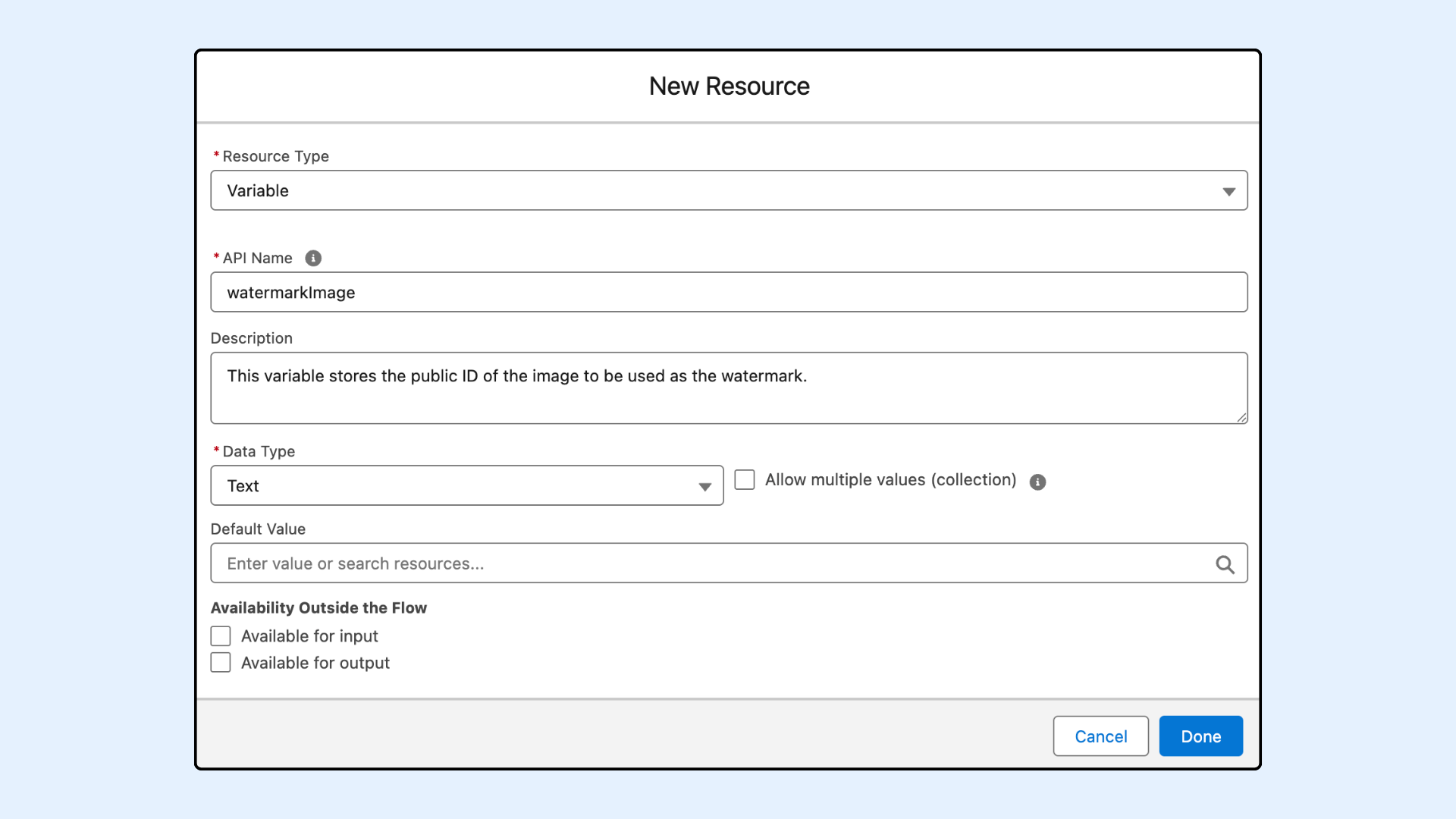
In this example, an image overlay will be added to the image being transformed. To make this possible, create a new Flow resource of type Variable to store the watermark image public ID.

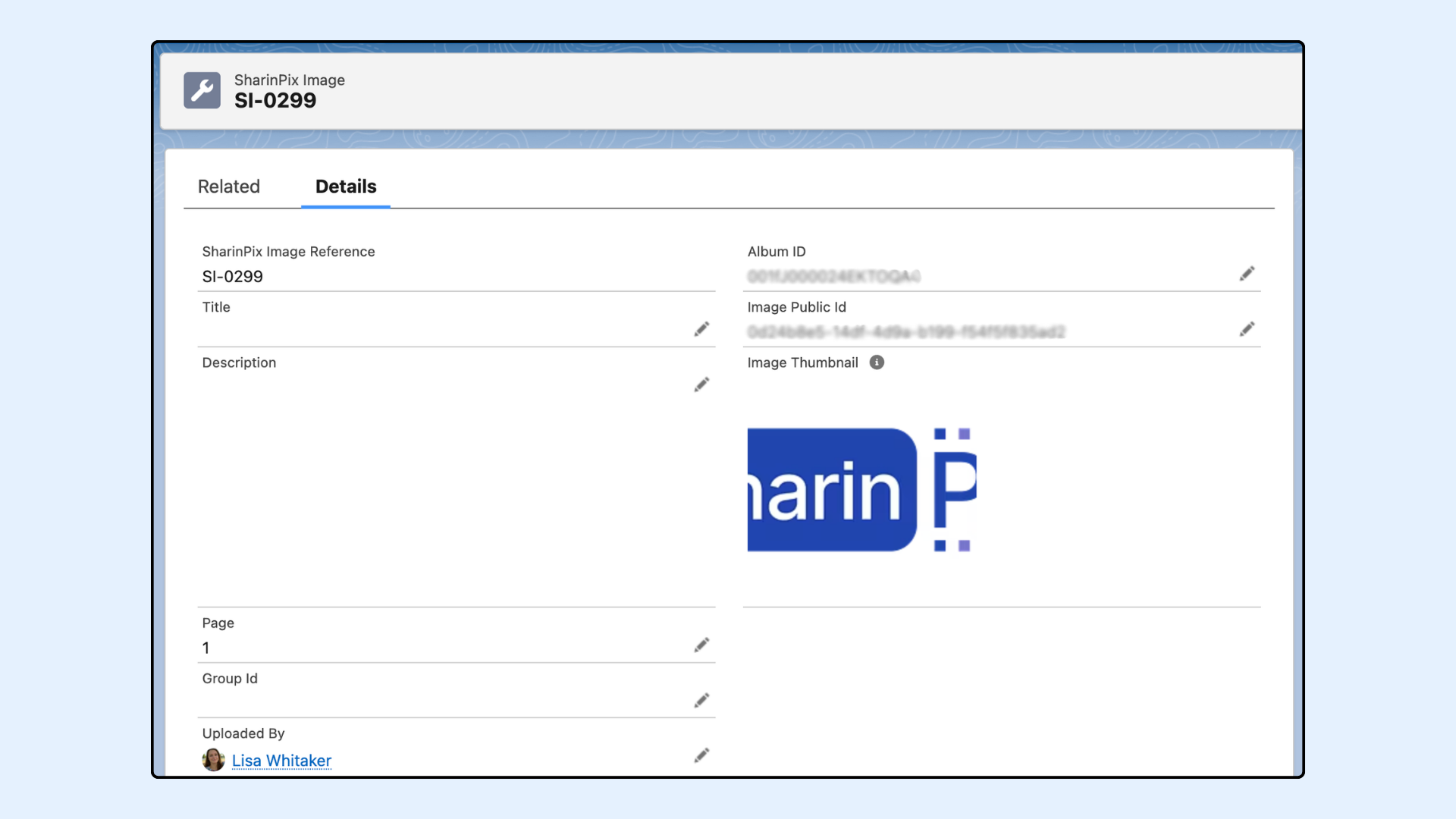
Below is the image that will be used as the watermark.

Next, add an Assignment element to the Flow to set the value of variable watermarkImage. Assign to watermarkImage the public ID of the image that will be used as the watermark.

Once assigned, the variable can be referenced in the Transformation JSON using Flow merge syntax: {!watermarkImage}

Step 3: Add the Apex Action to Transform Image

  1. Add an Action element

  2. Search for sharinpix__TransformImage

  3. On the Action modal for sharinpix__TransformImage, populate the fields with the example values indicated below:

Field
Example Value

Field Api Name

sharinpix__Description__c

Image Public ID

Triggering SharinPixImage__c > ImagePublic Id

Transformation JSON

[ { "width": 1200, "height": 800, "crop": "fill", "gravity": "center" }, { "color": "#19354d", "overlay": "{!watermarkImage}", "width": 500, "gravity": "south" },

{ "color": "#ffffff", "overlay": { "font_size": 65, "font_family": "Arial", "font_weight": "normal", "text": "Custom Text" }, "gravity": "center", "opacity": 30 } ]

Record ID

Blank*

The example JSON applies two transformations: the first adds an image overlay positioned at the bottom of the image, and the second adds a semi-transparent text overlay centered on the image.

*Note: For this example, you can leave Record ID blank, since the transformed image URL is stored directly on the SharinPixImage__c object itself.

circle-info

To change the format of the transformed image to JPG, add {"format": "jpg"} at the end of the transformation JSON.

Example: [{ "color": "#ffffff", "overlay": { "font_size": 65, "font_family": "Arial", "font_weight": "normal", "text": "Custom Text" }, "gravity": "center", "opacity": 30 },{ "format": "jpg"}].

Note: Only the JPG format is supported.

Save the Flow and click Activate.

Demo

To test the flow, let's go to an Account record page, and add an image to the SharinPix album for that record. This will create a SharinPixImage__c record.

Then, open that record and verify that the Description__c field is populated with the URL of the transformed image, as configured in the flow above. Click the URL to view the transformed image.

Below, you can see a comparison between the original image and the image after the transformations have been applied.

Last updated

Was this helpful?