> For the complete documentation index, see [llms.txt](https://docs.sharinpix.com/llms.txt). Markdown versions of documentation pages are available by appending `.md` to page URLs; this page is available as [Markdown](https://docs.sharinpix.com/documentation/lightning-web-component/sharinpix-pdf-form-builder.md).
# SharinPix PDF Form Builder
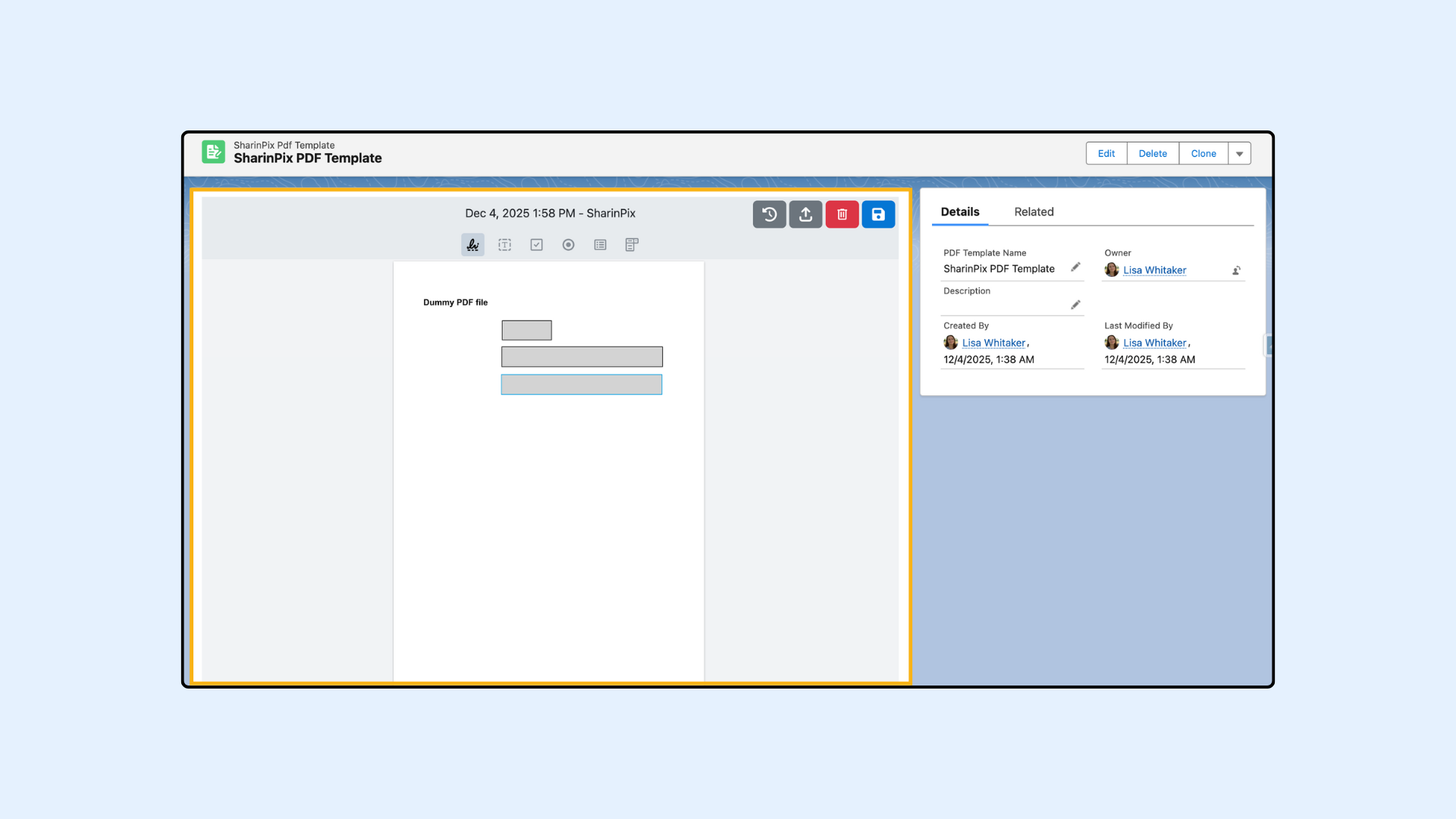
SharinPix PDF Form Builder allows users to upload and create a PDF form. This component will allow a user to add **Text** fields, **Signature** fields, **Checkbox** fields, **Radio Button** fields, **List Box** fields, and **Combo Text** fields, and **save** the PDF. The user will be able to view the modified PDF in Salesforce immediately after it is saved.
This article consists of:
* [Getting Started](#getting-started)
* [How Does It Work?](#demo)
* [Revert To Previous PDF Template](#revert-to-previous-pdf-template-version-1)
* [Update PDF And Keep Existing Fields](#change-pdf-and-keep-existing-fields)
{% hint style="info" %}
This feature is only available on Lightning. It can be used:
* **On Page Builder**
* **On Desktop**
* **On Mobile**
* **In your own Lightning Component development**
{% endhint %}
{% hint style="warning" %}
**Note:**
SharinPix PDF Form Builder is only available on the object **Pdf Template.**
You should ensure the following:
* The user should have the "**SharinPix PDF Form Builder**" permission set.
* User Profile should have **read/write** on the object **Pdf template.**
* **Tab Setting** should be set to **Default On**.
{% endhint %}
### Getting Started
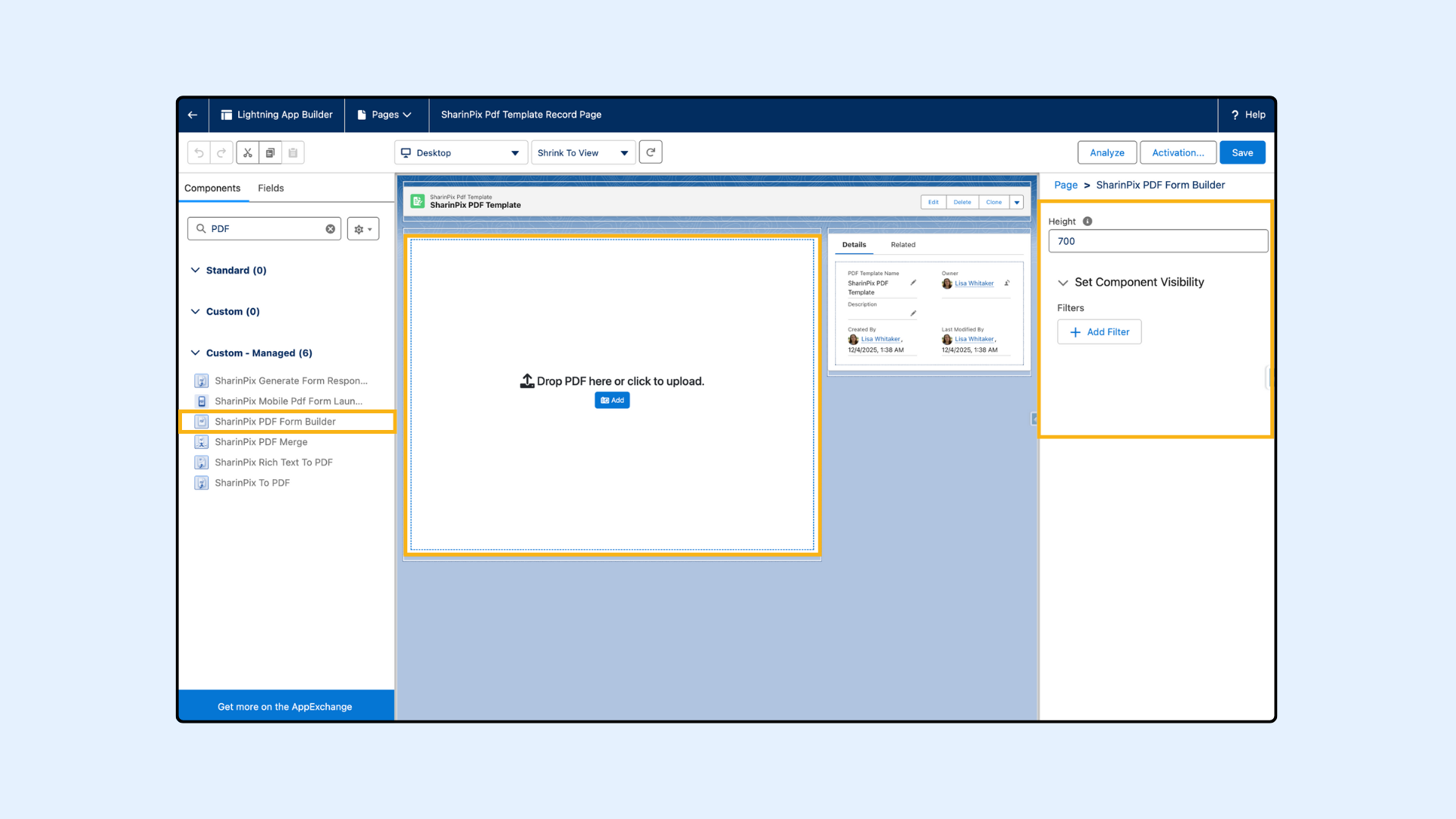
To use the SharinPix PDF Form Builder component, you simply need to drag and drop the component from the Lightning App Builder onto your page layout and activate the page.
The Lightning Parameter **Height specifies the height of the SharinPix PDF Form Builder**. The default height is **700** (**px**).
### How Does It Work?
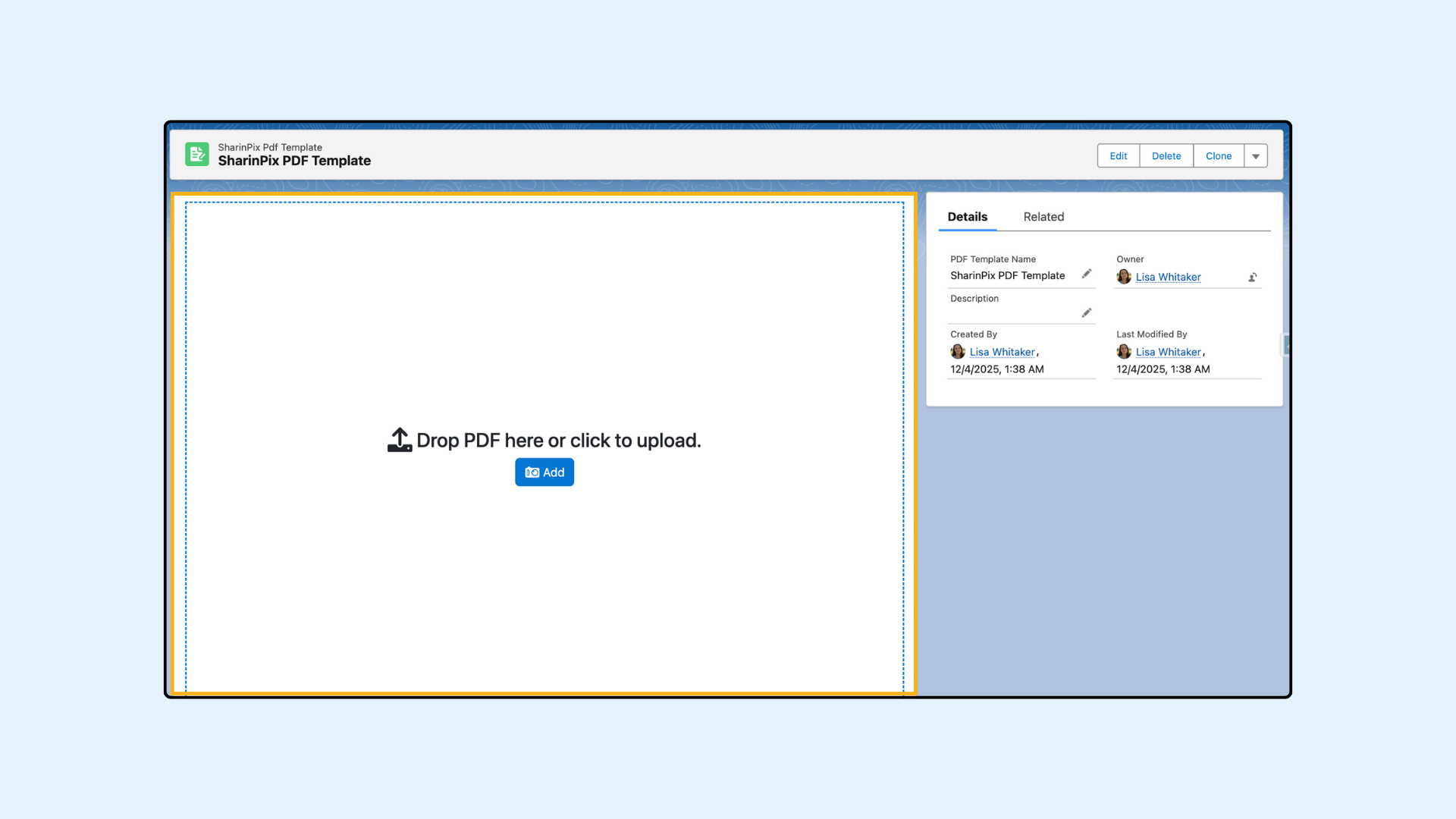
Click on the Add button or drag and drop a PDF onto the Lightning Web Component. Once uploaded, you will have access to various tools for the PDF.
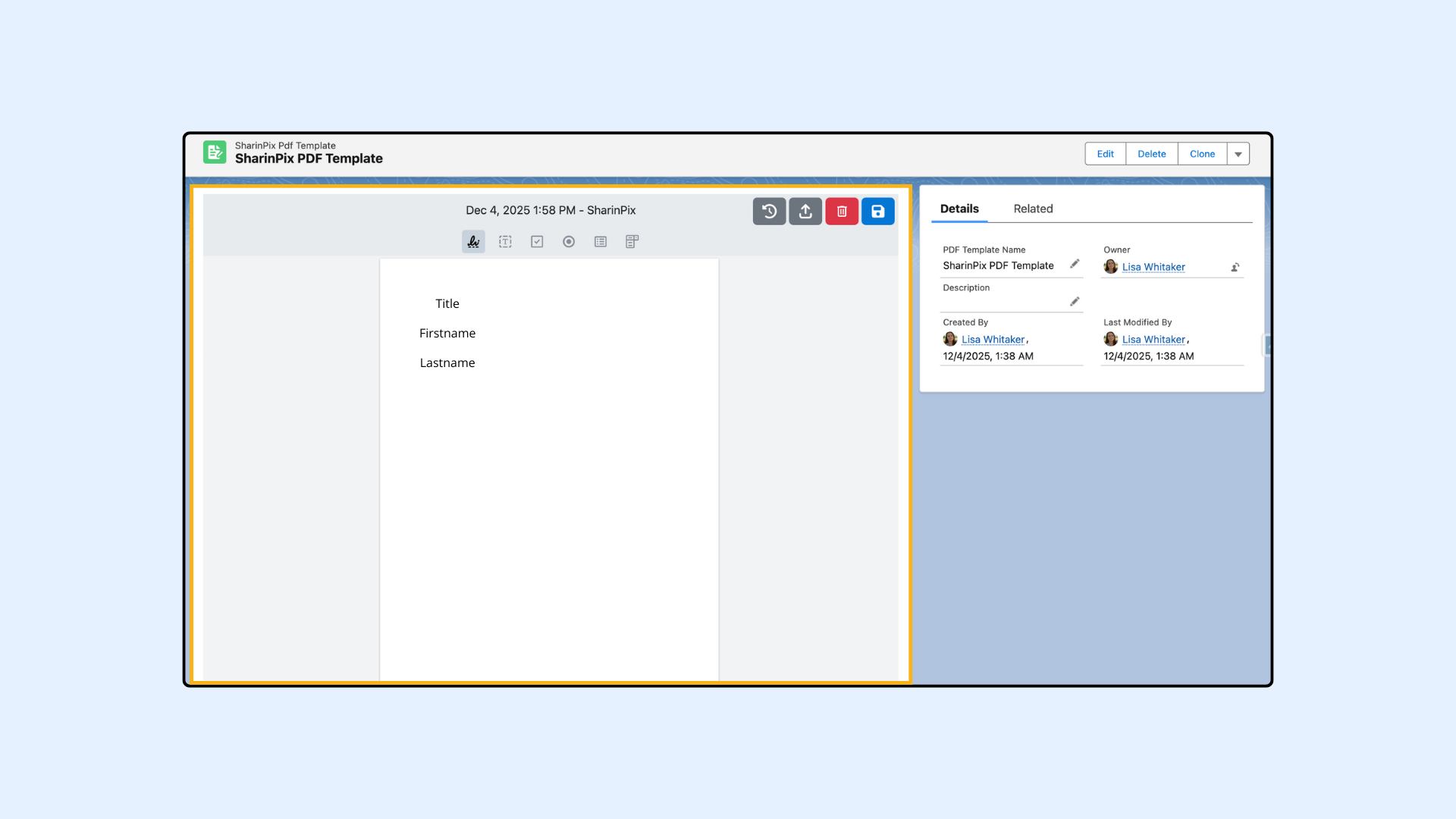
The following tools are available and can be used on the PDF Template:
1. **Text Field**
2. **Signature Field**
3. **Checkbox** **Field**
4. **Radio** **Button** **Field**
5. **List** **Box** **Field**
6. **Combo** **Box** **Field**
7. **History**
8. **Upload New PDF**
9. **Delete**
10. **Save**
{% hint style="success" %}
**Tip:**
Press and hold the Alt or Option (⌥) key while dragging an element to duplicate it.
{% endhint %}
{% hint style="success" %}
**Tip:**
**Text** field, **Checkbox** field, **Radio** **Button** field, **List** **Box** field, and **Combo** **Box** field can display values retrieved from a Salesforce record where the component [SharinPix Mobile PDF Form Launcher](/documentation/lightning-web-component/sharinpix-mobile-pdf-form-launcher.md) is used with the corresponding **SharinPix PDF Template URL**.
{% endhint %}
{% hint style="warning" %}
**Note:**
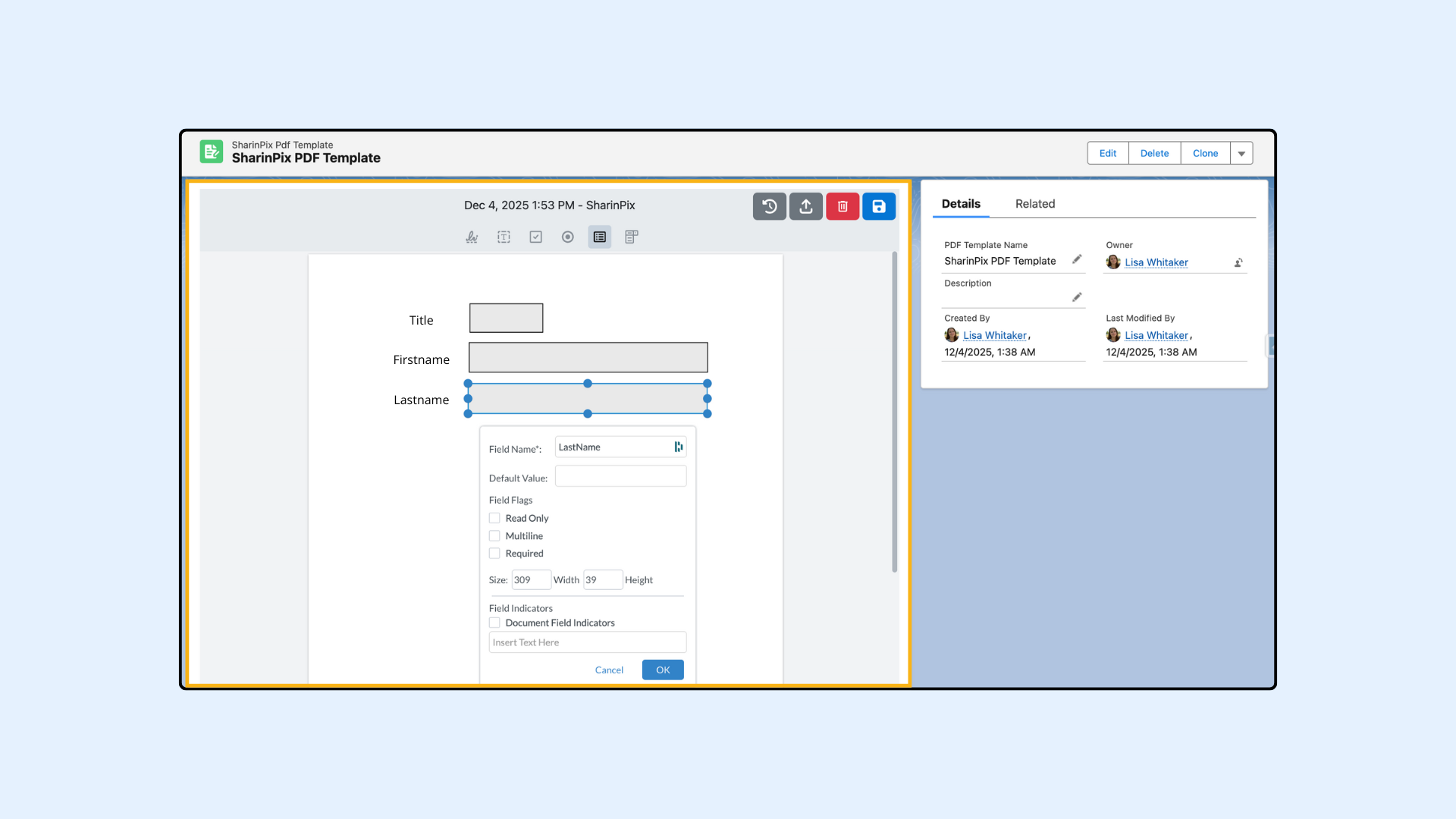
The exact Field API Name can be added in Field Name to pre-fill fields when using the SharinPix Mobile PDF Form Launcher Lightning Component.
{% endhint %}
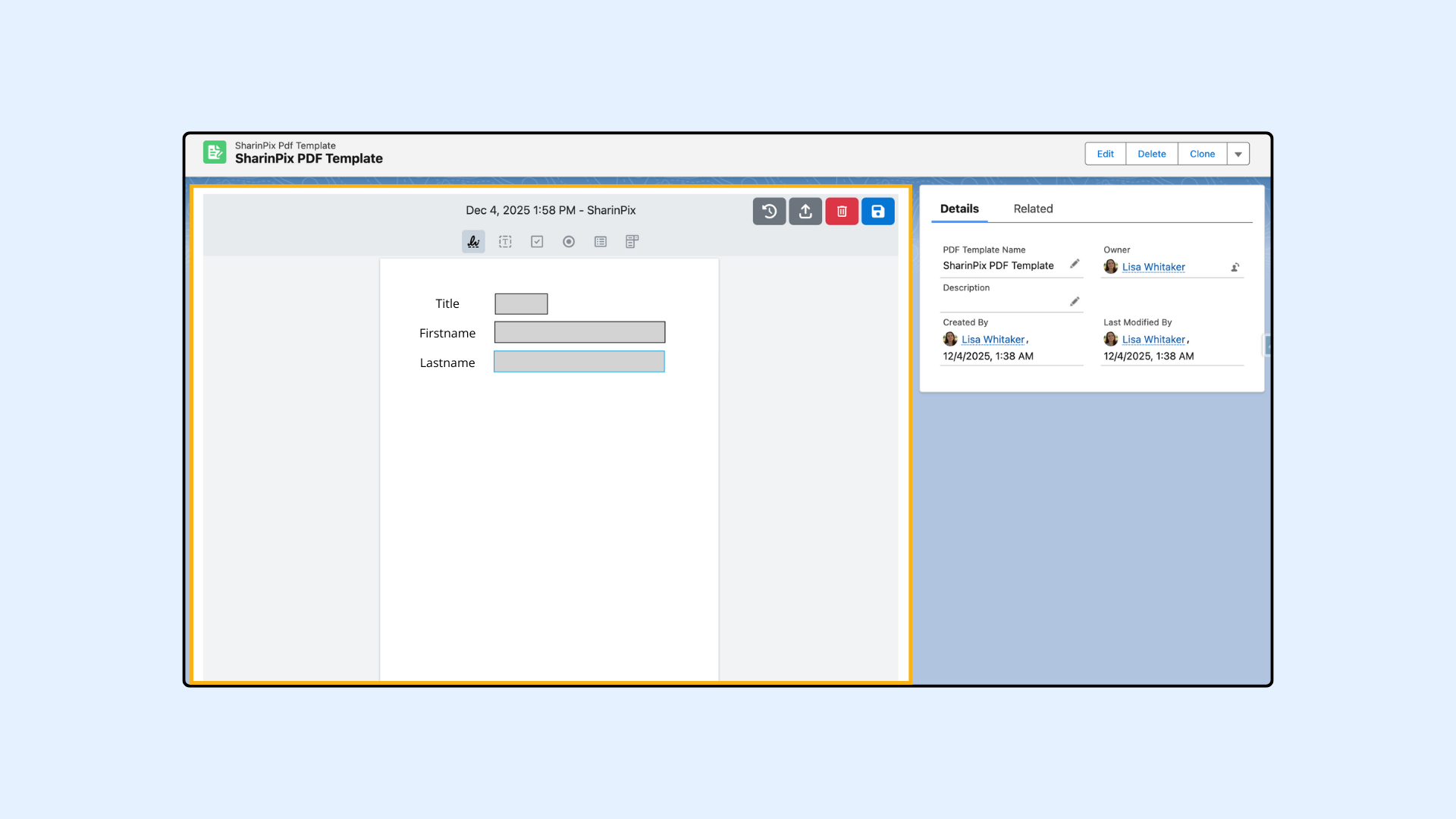
Fields can be added to the PDF as shown below:
Once you save the PDF, it will be displayed on the screen as follows:
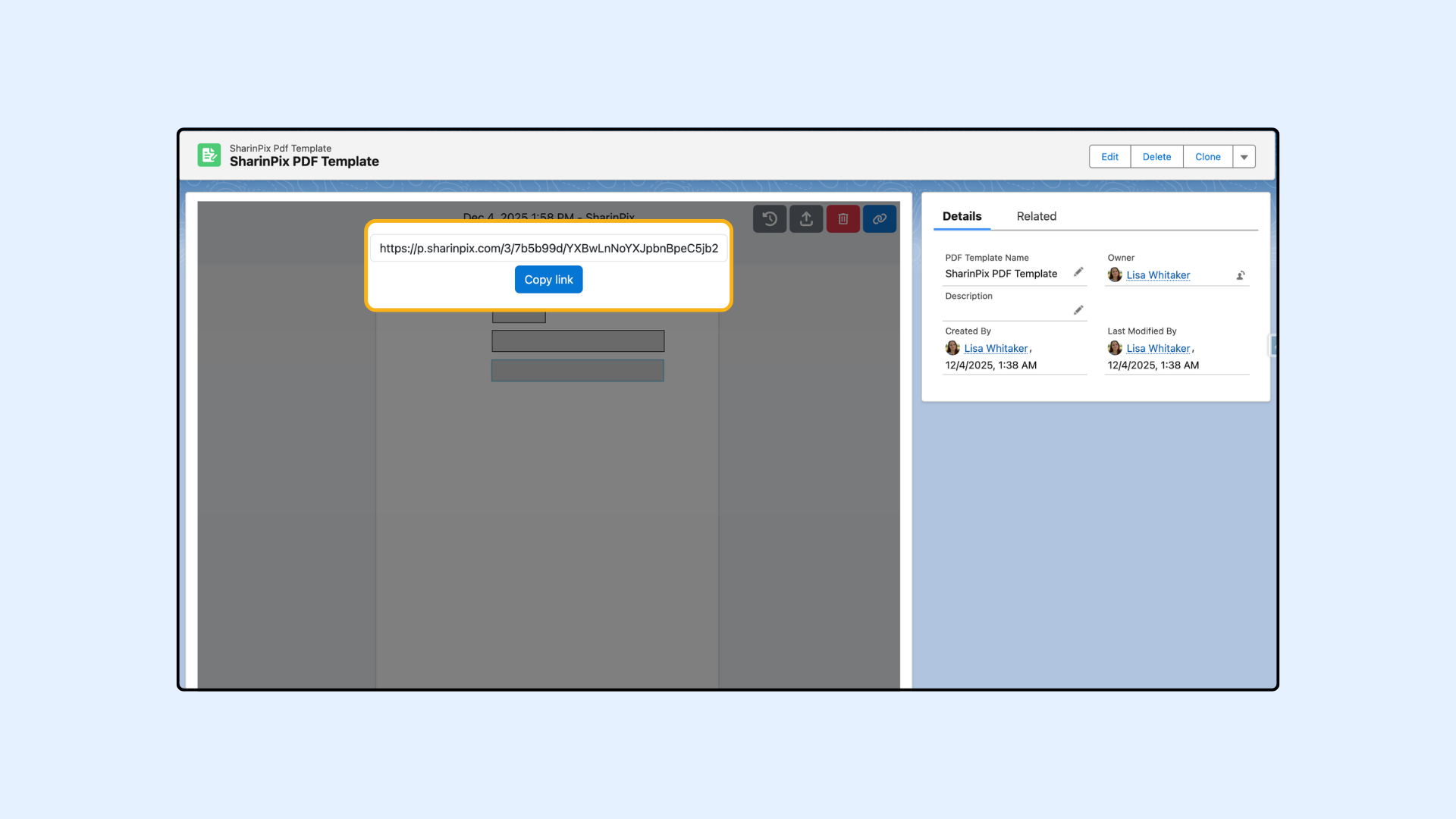
The link of the saved PDF can be copied using the link button (last button) as shown below:
{% hint style="success" %}
**Tip:**
The link of the template can be used on the Lightning Component [SharinPix Mobile PDF Form Launcher](/documentation/lightning-web-component/sharinpix-mobile-pdf-form-launcher.md)**.**
{% endhint %}
### Revert To Previous PDF Template Version
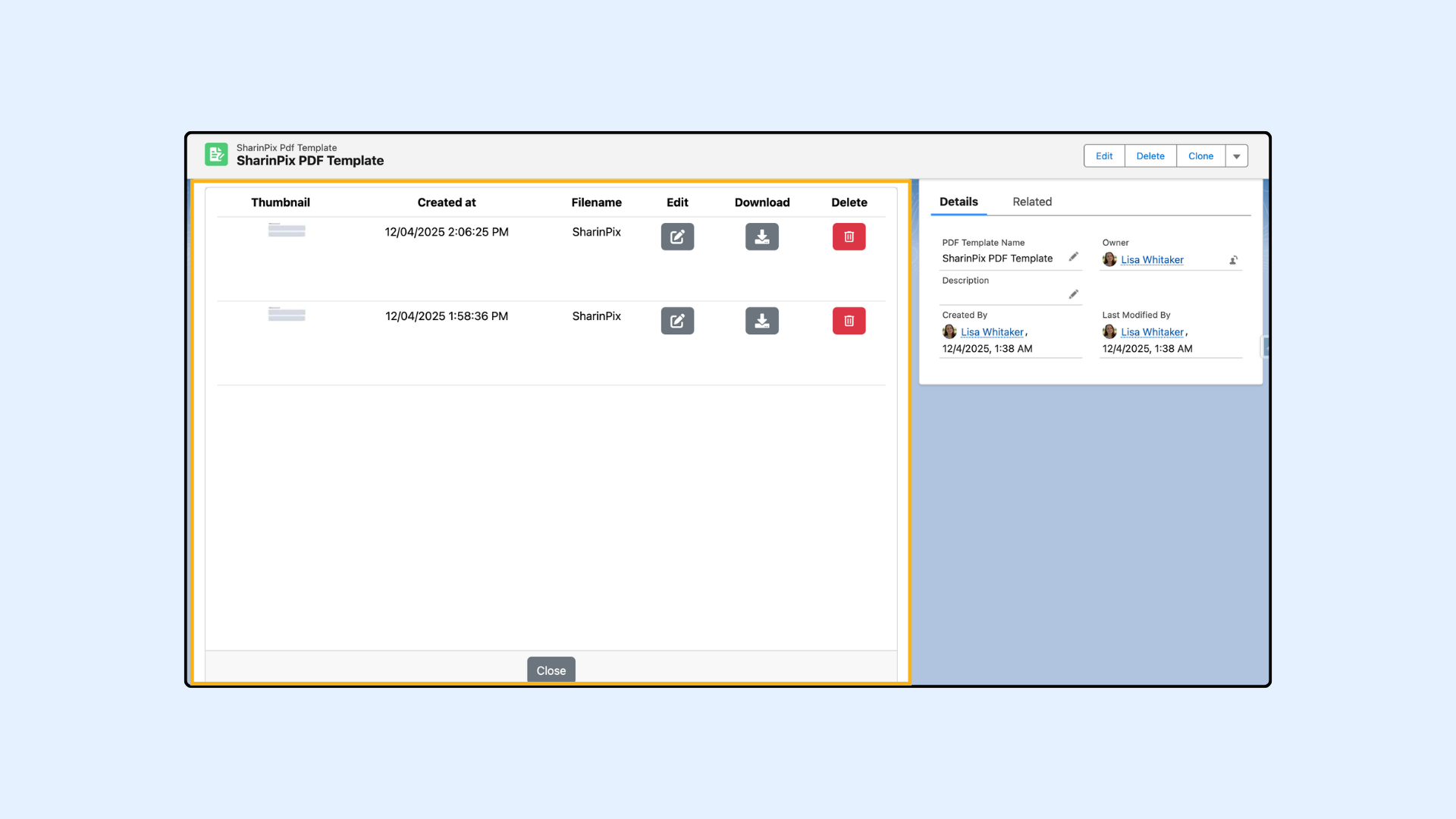
If you want to return to your previous PDF versions, click the History button (the first one in the header). This will show you all the versions you've saved, in case you want one of the previous versions. You can download any version you wish or delete it.
### Update PDF And Keep Existing Fields
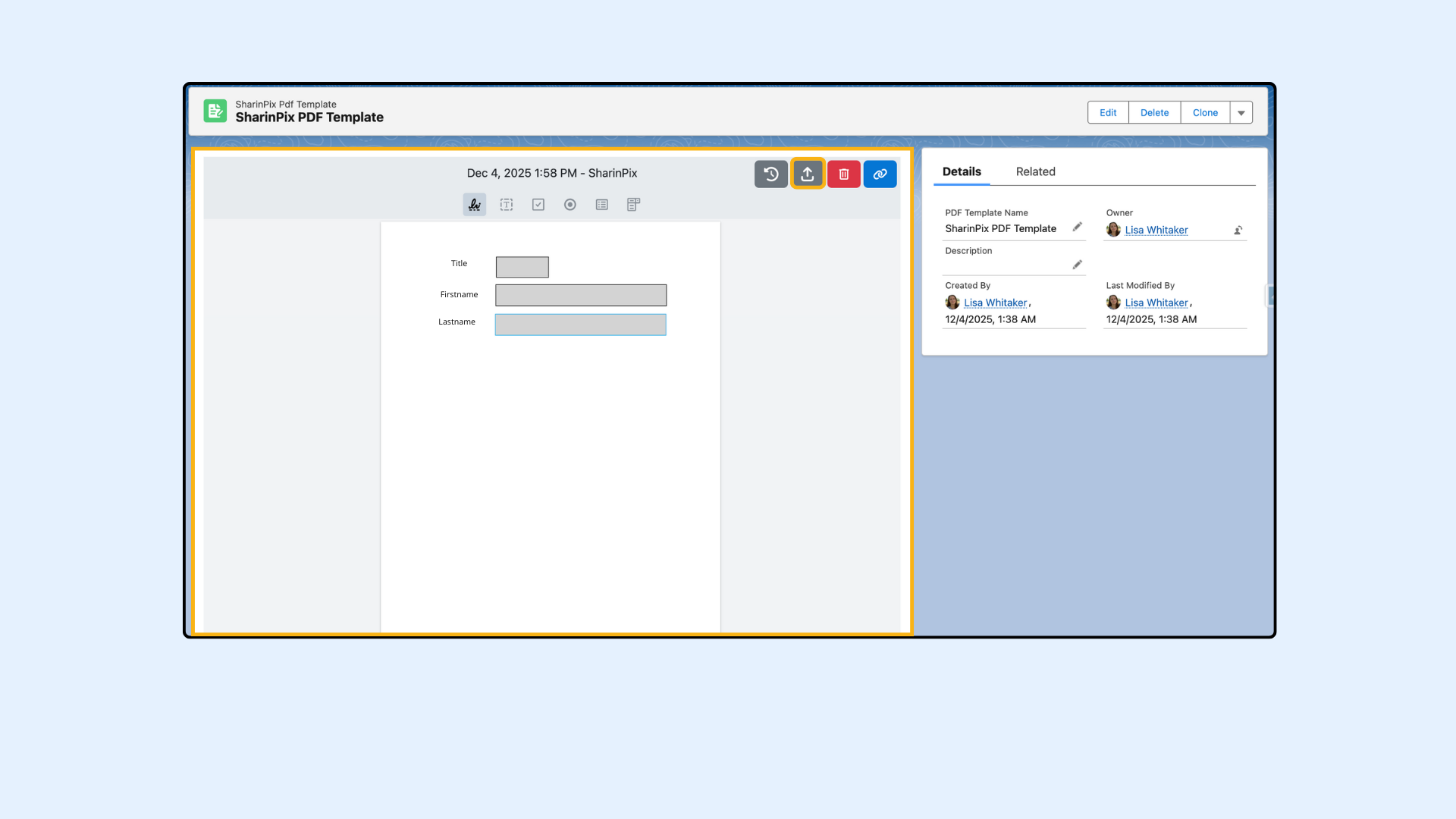
To update the background PDF while keeping the existing fields, click the Upload button (the second one in the header) and upload your new PDF. Then click on Save to save the changes and upload the updated PDF to SharinPix.
The following shows the result after saving the updated PDF:
---
# Agent Instructions
This documentation is published with GitBook. GitBook is the documentation platform designed so that both humans and AI agents can read, navigate, and reason over technical content effectively. Learn more at gitbook.com.
## Querying This Documentation
If you need additional information that is not directly available in this page, you can query the documentation by asking a question.
Perform an HTTP GET request on the following URL with the `ask` and `goal` query parameters:
```
GET https://docs.sharinpix.com/documentation/lightning-web-component/sharinpix-pdf-form-builder.md?ask=&goal=
```
`ask` is the immediate question: it should be specific, self-contained, and written in natural language.
`goal` is what the user is ultimately trying to achieve, the reason they need the answer. Sharing it helps GitBook give you a better, more relevant answer. A goal is most helpful when it describes the outcome the user wants rather than restating the question. For example, with `ask=how do I create an API token`, a goal like `automate deployments from our CI pipeline` lets GitBook tailor the answer to that use case.
The response will contain a direct answer to the question and relevant excerpts and sources from the documentation.
Use this mechanism when the answer is not explicitly present in the current page, you need clarification or additional context, or you want to retrieve related documentation sections.