> For the complete documentation index, see [llms.txt](https://docs.sharinpix.com/llms.txt). Markdown versions of documentation pages are available by appending `.md` to page URLs; this page is available as [Markdown](https://docs.sharinpix.com/documentation/mobile-app/sharinpix-mobile-app-global-configuration.md).
# SharinPix Mobile App: Global Configuration
The SharinPix mobile app has 3 configuration levels:
* By making use of [Deeplink](/documentation/mobile-app/sharinpix-mobile-app-deeplink-syntax.md) parameters.
* By making use of the [Settings screen](/documentation/mobile-app/sharinpix-mobile-app-settings-screen.md) on the SharinPix mobile app itself.
* By configuring the mobile app's global parameters as described in the following sections.
The SharinPix Mobile app global parameters enable the customization of the SharinPix mobile app. The parameters currently available are:
* [checklist\_order](#configure-the-checklist_order-parameter)
* [checklist\_reload](#configure-the-checklist_reload-parameter)
* [auto\_destroy\_after](#configure-the-auto_destroy_after-parameter)
* [incomplete\_checklist\_alert\_text](#configure-the-incomplete_checklist_alert_text-parameter)
* [incomplete\_form\_alert\_text](#configure-the-incomplete_form_alert_text-parameter)
* [team](#configure-the-team-parameter)
* [exit\_page\_text\_ios](#configure-the-exit_page_text_ios-parameter) (This parameter only applies to iOS devices)
* [compression](#configure-the-compression-parameter)
* [await\_upload](#configure-the-await_upload-parameter)
* [confirm](#configure-the-confirm-parameter)
* [watermark](#configure-the-watermark-parameter)
* [aspect\_ratio](#configure-the-aspect_ratio-parameter)
* [target\_size](#configure-the-target_size-parameter)
* [scan\_as](#configure-the-scan_as-parameter)
* [units](#configure-the-units-parameter)
* [roll\_limit](#configure-the-roll_limit-parameter)
* [allow\_file\_export](#configure-the-allow_file_export-parameter)
* [allow\_auto\_file\_export](#configure-the-allow_auto_file_export-parameter)
* [required](#configure-the-required-parameter)
* [snapsay\_language](#configure-the-snapsay_language-parameter)
* [submit\_after](#configure-the-submit_after-parameter)
* [annotation\_config](#configure-the-annotation_config-parameter)
This article explains how to configure the above parameters in your Organization.
{% hint style="warning" %}
**Note:**
Changes to the SharinPix mobile app global configuration can take some time to be deployed to your device when offline.
The SharinPix app will keep its current configuration in the cache for at least an hour. So, if you open the app with a token while you're online, the new configuration will be automatically applied if it has been more than an hour since the last update. You can force the app to update its local configuration by going to the Settings page (tap on the top-right cog icon when you open the app).
You can ensure the app settings have been updated by looking at the last updated date and time at the bottom of the Settings page.
{% endhint %}
## Set up the parameters on your Organization
The SharinPix mobile parameters can be configured on the SharinPix Global Settings as explained in the following steps.
1\. To access the SharinPix Global Settings, from your Org:
* Using App Launcher, search for **SharinPix Settings**
* On the SharinPix Settings tab, click on the **Go to administration dashboard** button to open the global settings
2\. Once on the SharinPix Global Settings:
* click on **Settings** from the top menu bar
* Next, click on the **Edit Organization** button
* The SharinPix mobile app parameters can be viewed and edited in the **Mobile app config** section as shown below:
* To add a parameter, select the action menu icon then, click on **Append** as depicted below:
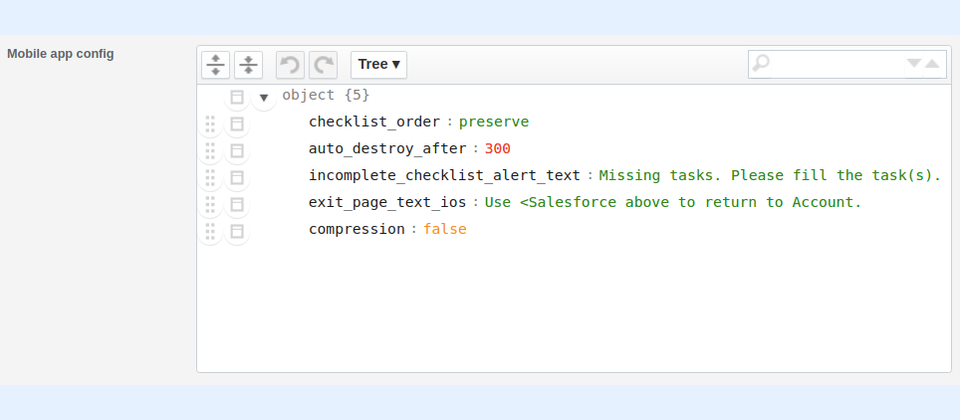
The example below depicts how the mobile app config section looks like after the parameters have been added:
{% hint style="warning" %}
**Note:**
The maximum number of images that can be added to a batch (a capture session) is usually 100, after which you will see an error message. You can add another 100 if you open the app again after submitting the previous one.
It is not recommended to add more than 100 images per batch. However, if you really wish to do so, please contact us and we will increase the limit.
{% endhint %}
### Configure the checklist\_order parameter
The **checklist\_order** parameter can be used to preserve the checklist order. This parameter takes two values:
* **auto:** Applying this value does not preserve the checklist's order. In this case, when a tag is applied from the checklist, the corresponding row is sent to the bottom of the list on the SharinPix app.
* **preserve:** This value is used to preserve the checklist order. Here, when a tag is applied from the checklist, the tag entry in the checklist remains in place, it is not sent to the bottom of the list.
The following code snippet shows how to configure the **checklist\_order** parameter to **preserve** or **auto** in the **Mobile app config** section:
* preserve: `"checklist_order": "preserve"`
* auto: `"checklist_order": "auto"`
Here's an example of how the **checklist\_order** parameter should look in the **Mobile app config** section:
### Configure the checklist\_reload parameter
This parameter can be used when using a [**checklist with form features**](/documentation/mobile-app/sharinpix-mobile-app-checklist-with-form-features.md) if [**checklist\_order**](#configure-the-checklist_order-parameter) is not set to **preserve**. When filling form fields in a checklist with form features, the checklist is not automatically reordered when an item changes from **incomplete** to **complete** or from **complete** to **incomplete**. To reorder the checklist, the user needs to click a reorder button. To reorder the checklist automatically, set the **checklist\_reload** parameter to **auto**. When set to **auto** the reload button is not displayed anymore.
Example:
`"checklist_reload": "auto"`
### Configure the auto\_destroy\_after parameter
The **auto\_destroy\_after** parameter automatically deletes your images and form checklist data from the mobile app once they are marked as processed after a pre-defined amount of time. The Job record, which groups all media to upload to a specific Salesforce record, will still be available for an additional eight hours; however, it will be empty. New images can still be uploaded using the same job until it expires. Adding new media will extend the lifespan of the job record.
By default, if this parameter is not set, the images and form checklist data will be deleted **10 days** after they are marked as processed.
The value used for this parameter should be equal to the **number of seconds** before the images and form checklist data are removed. For example, if you want your images and form checklist data removed after 5 minutes, the auto\_destroy parameter should be configured as follows: `"auto_destroy_after": 300`.
The auto\_destroy\_after parameter also accepts the following special values:
* **0:** When using **0** as the value, the images and form checklist data are removed once they are marked as processed. Here, no lapse of time is given for the deletion. The syntax is as follows:
`"auto_destroy_after": 0`
* **-1:** A value of **-1** means that the images and form checklist data will not be deleted. Here is the syntax is:
`"auto_destroy_after": -1`
Here's an example of how the **auto\_destroy\_after** parameter should look in the **Mobile app config** section:
### Configure the incomplete\_checklist\_alert\_text parameter
The **incomplete\_checklist\_alert\_text** parameter can be used to add a personalized alert in cases where users attempt to submit images without completing a checklist.
The following code snippet shows how to configure the **incomplete\_checklist\_alert\_text** parameter with your own personalized text:
`"incomplete_checklist_alert_text": "Please fill the missing task(s) before submission"`
The following placeholders can also be used with the **incomplete\_checklist\_alert\_text** parameter:
* **\**: The **\** will be replaced by the **number of tags** with less images than the **minimum count** specified for the tag.
Example:
`"incomplete_checklist_alert_text": "Missing tasks. Please fill the task(s)."`
will be displayed as follows on the SharinPix mobile app:
* **\**: This value will be replaced by a list of tags which has **either** less images than the minimum count specified for the tag **or** an unfilled required field for the tag.
Example:
`"incomplete_checklist_alert_text": "Missing tasks. Please fill the following task(s). "`
* **An empty string:** Inserting an empty string will omit the alert message when attempting to submit an incomplete checklist. For example, configuring the **incomplete\_checklist\_alert\_text** parameter as follows: `"incomplete_checklist_alert_text": ""` will not display any alert message when submitting an incomplete checklist.
### Configure the incomplete\_form\_alert\_text parameter
The **incomplete\_form\_alert\_text** parameter can be used to add a personalized alert in cases where users attempt to submit a [**checklist with form features**](/documentation/mobile-app/sharinpix-mobile-app-checklist-with-form-features.md) without filling any required **form-field** for any tag.
Example:
`"incomplete_form_alert_text": "Please fill all form fields before submitting."`
will be displayed as follows on the SharinPix mobile app:
The following placeholders can also be used for the **incomplete\_form\_alert\_text** parameter:
* **\**: This value will be replaced by a list of tags which has **either** less images than the minimum count specified for the tag **or** an unfilled required field for the tag.
Example:
`"incomplete_form_alert_text": " fields are unfilled. Please fill the following before submitting. "`
* **\**: The **\** value refers to the number tags with an unfilled required form-field in the checklist. For example, the following configuration
Example:
`"incomplete_form_alert_text": " fields are unfilled. Please fill to submit."`
### Configure the team parameter
The **team** parameter allows the user to view images already uploaded to the album the checklist relates to. This includes images uploaded live to the same record and checklists by other users.
The following code snippet shows how to configure the **team** parameter:
`"team": true`
This parameter takes two values:
* true: Used to show the user to see the online images on the checklist page
`"team": true`
* **false:** Default behaviour - will only show the images present locally on the device.
`"team": false`
{% hint style="success" %}
**Tips:**
* To retrieve the images you should make sure your token has at least the abilities: "**see**", "**image\_list** " and "**tags >read**".
* The necessary ability is required in the token so that it can access those tag images in the album.
* To configure the team checklist token abilities, you can either:
* Create a SharinPix Permission with all required team checklist abilities and assign it to your component as explained [here](/documentation/access-and-security/sharinpix-permission-for-sharinpix-mobile-launcher-component.md) (admin-friendly method).
* Programmatically configure the token as demonstrated in the code snippet available [in this article](/documentation/mobile-app/sharinpix-mobile-app-team-checklist.md) (developer-oriented method) if you are using a custom component. ***Note:*** *For some custom components, you can directly pass a SharinPix Permission ID to provide the correct Team Checklist token abilities.*
{% endhint %}
### Configure the exit\_page\_text\_ios parameter
The **exit\_page\_text\_ios** parameter can be used to personalize and associate a text to the SharinPix mobile app's back button on **iOS** devices. Since iOS does not allow us to close the app automatically, this text can guide the user on the way to proceed.
The following code snippet shows how to configure the **exit\_page\_text\_ios** parameter with your own personalized text:
`"exit_page_text_ios": "Use
It will be displayed as follows on the SharinPix mobile app:
Here's an example of how it looks like in the **Mobile app config** section:
{% hint style="info" %}
**Information:**
The **ret\_url** parameter allows users to return to a specific external app (for example, Salesforce app or Salesforce Field Service app) from the SharinPix mobile app. This parameter can be configured in deeplinks.
For more information on the **ret\_url** parameter and on how it is configured, refer to the following article: [Deeplink syntax](/documentation/mobile-app/sharinpix-mobile-app-deeplink-syntax.md)
{% endhint %}
### Configure the compression parameter
The **compression** parameter can be used to dictate the SharinPix mobile app to compress the captured images or not. Compressing the images taken by the SharinPix mobile app accelerates the upload and does not impact on the image quality.
The following code snippet shows how to configure the **compression** parameter:
`"compression": false`
This parameter accepts two values:
* **true:** When set to **true**, the SharinPix mobile app will perform the compression of images. (Note: The compression is set to true **by default**. Therefore, if not specified, image compression will take place.)
`"compression": true`
* **false:** When set to **false**, the mobile app will not compress the captured images.
`"compression": false`
### Configure the await\_upload parameter
The **await\_upload** parameter can be used to show the upload progress after submitting images captured using the SharinPix mobile app or after submitting a [checklist with form features](/documentation/mobile-app/sharinpix-mobile-app-checklist-with-form-features.md).
The values that this parameter can take are as follows:
* **checklist**: Used to show the image upload progress and wait for completion before exiting when submitting a **checklist with form features**
`"await_upload: "checklist"`
* **batch:** Used to show the image upload progress and wait for completion before exiting when submitting a batch \ `"await_upload": "batch"`
* **form:** Used to show medias upload progress and wait for completion before exiting when submitting a form containing batch or batches \ `"await_upload": "form"`
* **none:** Default behaviour - uploads will be done in the background \ `"await_upload": "none"`
{% hint style="success" %}
**Tips:**
The **await\_upload** parameter can also be configured in deeplinks. For more information on how to configure this parameter in a deeplink, refer to the following article:
[SharinPix mobile App : Deeplink syntax](/documentation/mobile-app/sharinpix-mobile-app-deeplink-syntax.md)
{% endhint %}
### Configure the confirm parameter
The **confirm** parameter is used to request confirmation from the user before the actual submission. A screen is shown with details of media to be submitted and the user can modify his input before finalizing the submission. The value for this parameter can be:
`"confirm": "batch"`
for showing the confirmation screen before batch submission.
{% hint style="success" %}
**Tip:**
The **confirm** parameter can also be configured in deeplinks. For more information on how to configure this parameter in a deeplink, refer to the following article:
[SharinPix mobile App : Deeplink syntax](/documentation/mobile-app/sharinpix-mobile-app-deeplink-syntax.md)
{% endhint %}
### Configure the watermark parameter
The **watermark** parameter is used to set up and display watermarks on images captured from the SharinPix mobile app.
The following code snippet shows how to configure the **watermark** parameter:
`"watermark": "Hello World"`
The watermark is also available on the image when uploaded to the SharinPix album as depicted below:
#### Watermark Configuration with Date/Time and Location
The watermark parameter can be configured so as to also display the date/time and location at which the image was captured as demonstrated below:
`watermark: "Job-1 taken at Location: , "`
The date/time and location can be configured using the following syntax:
* **< TIMESTAMP>** **:** Returns the datetime in the format **yyyy-MM-dd HH:mm:ss Z**
* **\:** Referring to Line Feed and used to add a new line.
* **\:** Returns the latitude.
* **< LON> :** Returns the longitude.
The picture below depicts a photo captured using the SharinPix mobile app with the following watermark parameter:
`watermark: "Job-12 taken at Location: , "`
In the above example:
* The **\** returned the date/time 2022-07-03 22:17:13-0400.
* The **\** returned the latitude 43.6699136.
* The **\** returned the longitude -79.3903104.
{% hint style="success" %}
**Tip:**
The **watermark** parameter can also be configured in deeplinks. For more information on how to configure this parameter in a deeplink, refer to the following article:
[SharinPix mobile App : Deeplink syntax](/documentation/mobile-app/sharinpix-mobile-app-deeplink-syntax.md)
{% endhint %}
{% hint style="warning" %}
**Note:**
* Configuring the watermark parameter at this level, that is, at the SharinPix Global Settings, will be applied by default to all images captured by the SharinPix mobile app. This configuration will override all watermark configurations performed at the deeplink level.
* If images are selected from the roll while the watermark parameter is enabled, only **jpeg** images will preserve their exifs.
{% endhint %}
### Configure the aspect\_ratio parameter
The **aspect\_ratio** parameter can be used to open the camera with the specified aspect ratio.
The available options are :
* 3:4
* 9:16
The following code snippet shows how to configure the **aspect\_ratio** parameter:
`"aspect_ratio": "9:16"`
### Configure the target\_size parameter
The **target\_size** parameter can be used to dictate the SharinPix mobile app to capture images with a specific image resolution. Capturing images with low resolution does affect the image quality but can reduce the storage size and accelerate the upload of images.
The following code snippet shows how to configure the **target\_size** parameter:
`"target_size": 1920`
Using this parameter does not mean that the resolution of the images will be exactly what you have specified when configuring.
iOS will choose the resolution based on the specified **target\_size** and **aspect ratio**. It will select the resolution whose width has the smallest absolute difference from the specified target size.
The available resolution options for each aspect ratio are:
For an aspect Ratio of 3:4, the options are:
* 352 x 288
* 640 x 480
While for an aspect Ratio of 9:16, the options are:
* 3840 x 2160
* 1920 x 1080
* 1280 x 720
Unlike iOS, different Android phones have different possible resolutions that can be used to capture images. It is up to the mobile system to choose the resolution closest to the **target\_size** specified. In some cases, it may be higher than the **target\_size** specified.
### Configure the scan\_as parameter
The **scan\_as** parameter can be used to save the output for the scan files as images or pdf. As the default behaviour, one scan will be saved as an image and multiple scans will be saved as a pdf.
The following code snippet shows how to configure the **scan\_as** parameter:
`"scan_as": "image"`
The parameter scan\_as takes two values:
* **image** - Setting the value to image will save the scan files as images on the SharinPix mobile app.
`"scan_as": "image"`
* **pdf** - Setting the value to pdf will save the scan files as images on the SharinPix mobile app.
`"scan_as": "pdf"`
{% hint style="success" %}
The **scan\_as** parameter can also be configured in deeplinks. For more information on how to configure this parameter in a deeplink, refer to the following article:
[SharinPix mobile App : Deeplink syntax](/documentation/mobile-app/sharinpix-mobile-app-deeplink-syntax.md#scan_as)
{% endhint %}
### Configure the units parameter
The **units** parameter is used to configure the measurement units that are available when annotating images with numerical values. This is available on arrows and double arrows. They can be used to automatically add SI units (e.g. ft and in) to the numbers users type. If the **units** parameter is not configured in the Global Settings, the default units will be as shown in the screen capture below.
The following code snippet shows an example of how to configure the **units** parameter:
`"units": ["m","mm","cm"]`
The parameter **units** take the measurement units as an array of values.
### Configure the roll\_limit parameter
The **roll\_limit** parameter is used to configure the maximum number of images that can be chosen from the roll. The value of the **roll\_limit** parameter cannot exceed 100, which is the maximum possible number of images per batch or capture session.
If the **roll\_limit** parameter is not configured, the maximum number of images that can be chosen from the roll is 30 by default.
The following code snippet shows an example of how to configure the **roll\_limit** parameter: `"roll_limit": 50`
{% hint style="success" %}
**Tip:**
If you wish to have a higher limit than 100, [contact us](/documentation/getting-started-with-sharinpix/how-to-contact-support.md) to discuss the use case.
{% endhint %}
{% hint style="warning" %}
**Warning:**
* Increasing the roll\_limit may affect the performance of the application on some devices.
* On **Android** , device manufacturers impose their **own limits** on the number of images that can be chosen in a single selection. If the **roll\_limit** exceeds the device’s restriction, the device’s limit will take priority, and users will only be able to select up to the maximum allowed by their device.
{% endhint %}
### Configure the allow\_file\_export parameter
The **allow\_file\_export** parameter allows the export of images or media files from the SharinPix app to the device's storage. For more information on different export options, refer to the following article: [Export media to internal storage](/documentation/mobile-app/export-media-to-internal-storage.md).
This parameter accepts two values:
* **true:** When set to **true** , the export functionality becomes accessible.
`"allow_file_export": true`
* **false:** When set to **false** , the export functionality is unavailable. (If no value is specified, the flag defaults to false.)
`"allow_file_export": false`
### Configure the allow\_auto\_file\_export parameter
The **allow\_auto\_file\_export** parameter is used to export all images or media files from the SharinPix app including those selected from the roll to the device's storage. For more information on allow\_auto\_file\_export, refer to the following article: [Automatic file export](/documentation/mobile-app/export-media-to-internal-storage.md#automatic-file-export)
This parameter accepts two values:
* **true:** When set to **true** , all images or media files will be automatically exported to the device's storage.
`"allow_auto_file_export": true`
* **false:** When set to **false** , no images or media files will be exported. (If no value is specified, the flag defaults to false.)
`"allow_auto_file_export": false`
{% hint style="warning" %}
**WARNING:**
if the auto\_destroy\_after parameter is set to zero, the ability to export files is restricted. The [**auto\_destroy\_after**](#configure-the-auto_destroy_after-parameter) parameter controls the automatic deletion of files from the mobile app media once they are marked as processed after a specified period. If this parameter is configured to retain files only until needed (set to zero), the **allow\_file\_export** or **allow\_auto\_file\_export** functionality will be disabled to prevent unauthorized file export.
{% endhint %}
### Configure the required parameter
The **required** parameter allows a user to set a field as mandatory on a media record from the SharinPix mobile app. For example, the *title* can be required on the each image taken on the SharinPix mobile app. The following code snippet shows an example of how to configure the **required** parameter for *title* field.
`"required": ["title"]`
This **required** parameter takes an array of string, representing the fields to be set as mandatory. For example:
`"required": ["title", "description"]`
This parameter accepts the following values:
* title
* description
### Configure the snapsay\_language parameter
The **snapsay\_language** parameter forces the [**Snap & Say**](/documentation/mobile-app/sharinpix-mobile-app-snap-say.md) language on **iOS**. This parameter accepts a language code as its value.
The following code snippet shows how to configure the **snapsay\_language** parameter:
`"snapsay_language": "en-US"`
{% hint style="warning" %}
**Note:**
For more information on the *Snap & Say* supported languages and language codes, please refer to this link: [**Supported languages**](/documentation/mobile-app/sharinpix-mobile-app-snap-say.md)
{% endhint %}
### Configure the submit\_after parameter
The **submit\_after** parameter automatically submits a batch once a defined number of media items is reached. The value specified for this parameter sets the threshold at which the SharinPix app submits the batch without manual intervention.
This parameter accepts a numerical value representing the number of media items required to trigger automatic submission.
The following code snippet demonstrates how to configure the **submit\_after** parameter:
`"submit_after": 10`
In the above example, with **submit\_after** set to 10, the batch will be automatically submitted once 10 media items have been added. When this threshold is reached, the batch is submitted without any further user action.
{% hint style="warning" %}
**Note:**
* If a multi-page PDF is scanned as a PDF, the whole PDF will be considered as one media item. Otherwise if it is scanned as images, each page will count as a separate media item.
* If the number of images/documents exceeds **submit\_after** , remaining media items will still be submitted.
* Note that once the number of media items is reached, the submission will start without allowing the user to view, annotate or add a title and description.
{% endhint %}
### Configure the annotation\_config parameter
The **annotation\_config** parameter allows you to specify a pre-defined annotation setup—tools, colors, and other engine settings—that the SharinPix app will load for your media. The value is the URL of an annotation configuration you’ve created in the SharinPix Annotations Configurator.
This parameter accepts a string URL pointing to your annotation config.
The following code snippet demonstrates how to configure the **annotation\_config** parameter:
`"annotation_config": "https://app.sharinpix.com/o/7d32/annotation_configs/e52d148b-081d-46b0-bb0c-ca8ae8f682a4"`
In the above example, with **annotation\_config** set to that URL, the SharinPix annotation engine will load your custom tools, color palette, and other settings defined in that configuration.
{% hint style="warning" %}
**Note:**
For details on how to create and customize your own annotation configuration, please check the SharinPix documentation on [Creating an Annotation Config](/documentation/features/user-interface/annotations-configurator.md#creation-of-an-annotation-config).
{% endhint %}
{% hint style="success" %}
**Tips:**\
For additional parameters, you can refer to the documentation below: [SharinPix Mobile App URL Parameters](/documentation/mobile-app/sharinpix-mobile-app-deeplink-syntax.md#deeplink-url-parameters)
{% endhint %}
---
# Agent Instructions
This documentation is published with GitBook. GitBook is the documentation platform designed so that both humans and AI agents can read, navigate, and reason over technical content effectively. Learn more at gitbook.com.
## Querying This Documentation
If you need additional information that is not directly available in this page, you can query the documentation by asking a question.
Perform an HTTP GET request on the following URL with the `ask` and `goal` query parameters:
```
GET https://docs.sharinpix.com/documentation/mobile-app/sharinpix-mobile-app-global-configuration.md?ask=&goal=
```
`ask` is the immediate question: it should be specific, self-contained, and written in natural language.
`goal` is what the user is ultimately trying to achieve, the reason they need the answer. Sharing it helps GitBook give you a better, more relevant answer. A goal is most helpful when it describes the outcome the user wants rather than restating the question. For example, with `ask=how do I create an API token`, a goal like `automate deployments from our CI pipeline` lets GitBook tailor the answer to that use case.
The response will contain a direct answer to the question and relevant excerpts and sources from the documentation.
Use this mechanism when the answer is not explicitly present in the current page, you need clarification or additional context, or you want to retrieve related documentation sections.