> For the complete documentation index, see [llms.txt](https://docs.sharinpix.com/llms.txt). Markdown versions of documentation pages are available by appending `.md` to page URLs; this page is available as [Markdown](https://docs.sharinpix.com/forms/form-elements/form-features-use-dynamic-salesforce-data-with-record-datasets.md).
# Form Features - Use Dynamic Salesforce Data with Record Datasets
## Overview
[**Record Datasets**](/forms/salesforce-integration/record-datasets.md) let you use Salesforce data inside SharinPix Forms.
This feature is currently available for **Select** and **Multi-Select** questions. It lets you populate options from a **Record Dataset** generated from Salesforce records.
Use it when the available options should reflect Salesforce data instead of a fixed list entered in the form builder.
{% hint style="info" %}
Refresh your Record Datasets regularly to keep options in sync with Salesforce.
{% endhint %}
This article covers:
* [Configure dynamic Select or Multi-Select options with a Record Dataset](#configure-dynamic-select-or-multi-select-options-with-a-record-dataset)
* [Choose the label and value fields](#choose-the-label-and-value-fields)
* [Filter available rows](#filter-available-rows)
* [Prefill Repeated Sections with a Record Dataset](#prefill-repeated-sections-with-a-record-dataset)
* [Set up dataset mapping](#set-up-dataset-mapping)
* [Demo: Select Employees based on their Company](#demo-select-employees-based-on-their-company)
### Configure dynamic Select or Multi-Select options with a Record Dataset
Add a **Select** or **Multi-Select** question.
In the **Options** tab, click **Select a dataset** and choose one of the available **Record Datasets**.
{% hint style="info" %}
Create the Record Dataset from Salesforce data before configuring the question in the Form Builder.
Refer to [How to Create a Record Dataset](/forms/salesforce-integration/record-datasets.md#how-to-create-a-record-dataset).
{% endhint %}
The available fields depend entirely on the columns exported into the Record Dataset.
In this example, the dataset includes:
* `Id`
* `Name`
* `SiteAddress__c`
* `SiteArea__c`
* `SiteType__c`
* `Inspection__c`
If a field is not present in the dataset, you cannot use it in the question configuration or the filter formula.
### Choose the label and value fields
After selecting the dataset, choose which column should be used as:
* the **label**, which is shown to the user
* the **value**, which is stored in the form response
In most cases, use a readable field for the label and a stable field for the value.
For example, you might display `Name` while storing `Id`.
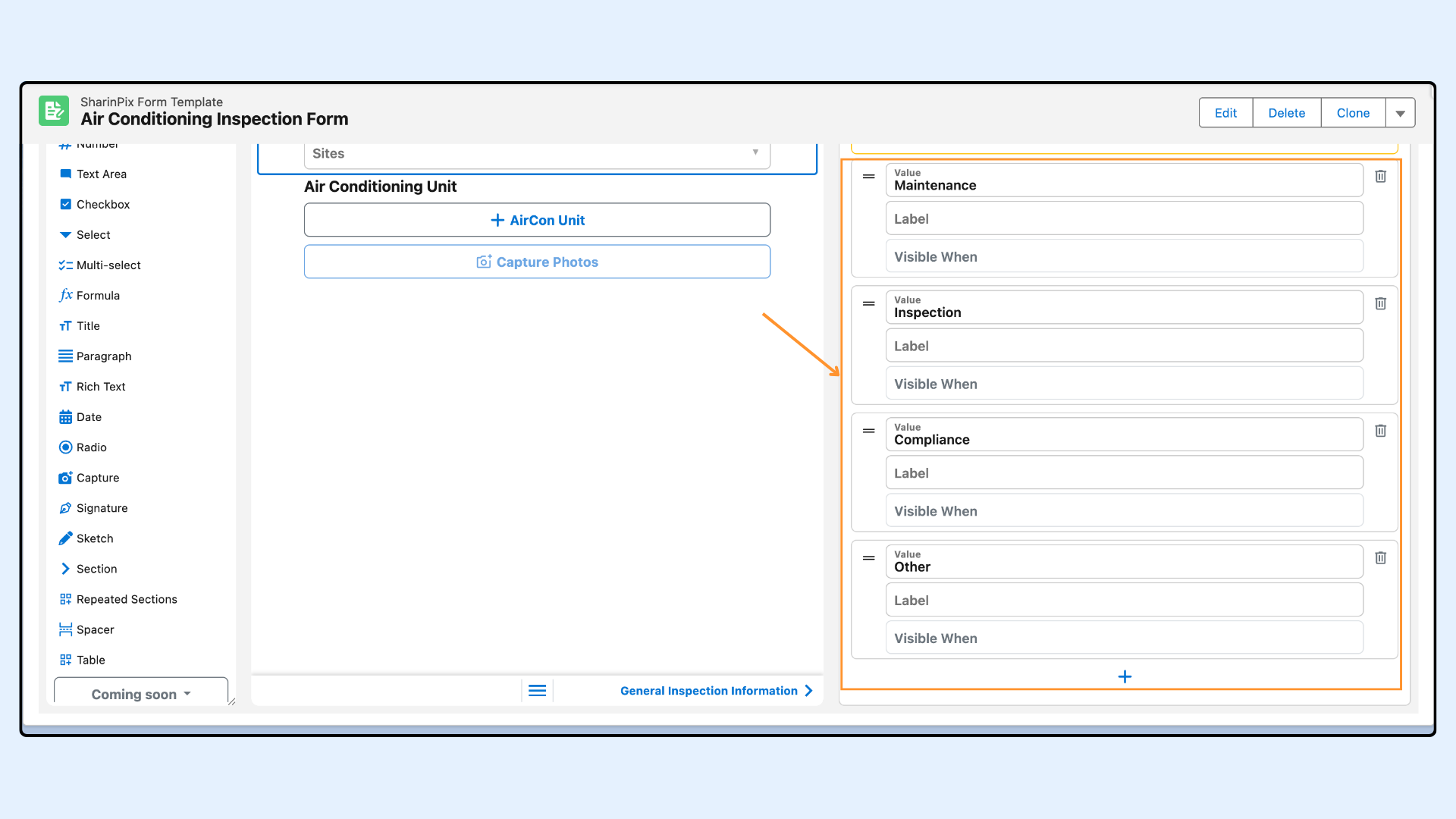
You can keep static options or remove them, depending on whether the question should rely entirely on the selected dataset.
#### Filter available rows
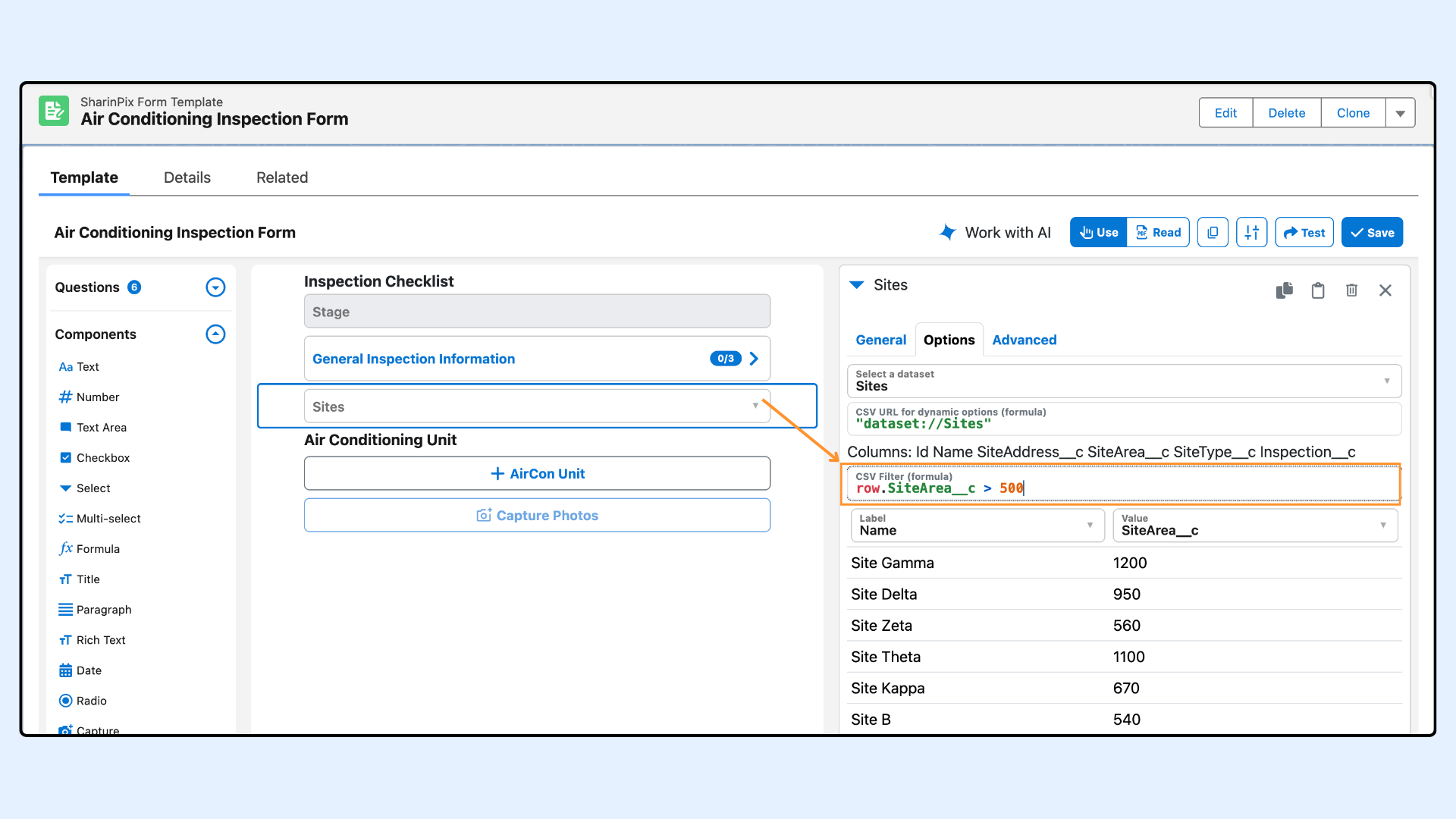
In the **CSV Filter (formula)** field, reference dataset columns with `row.`.
You can use any column exported in the dataset inside the filter.
With the example dataset above, valid references include:
* `row.Id`
* `row.Name`
* `row.SiteAddress__c`
* `row.SiteArea__c`
* `row.SiteType__c`
* `row.Inspection__c`
Use this filter to show only rows that match specific values.
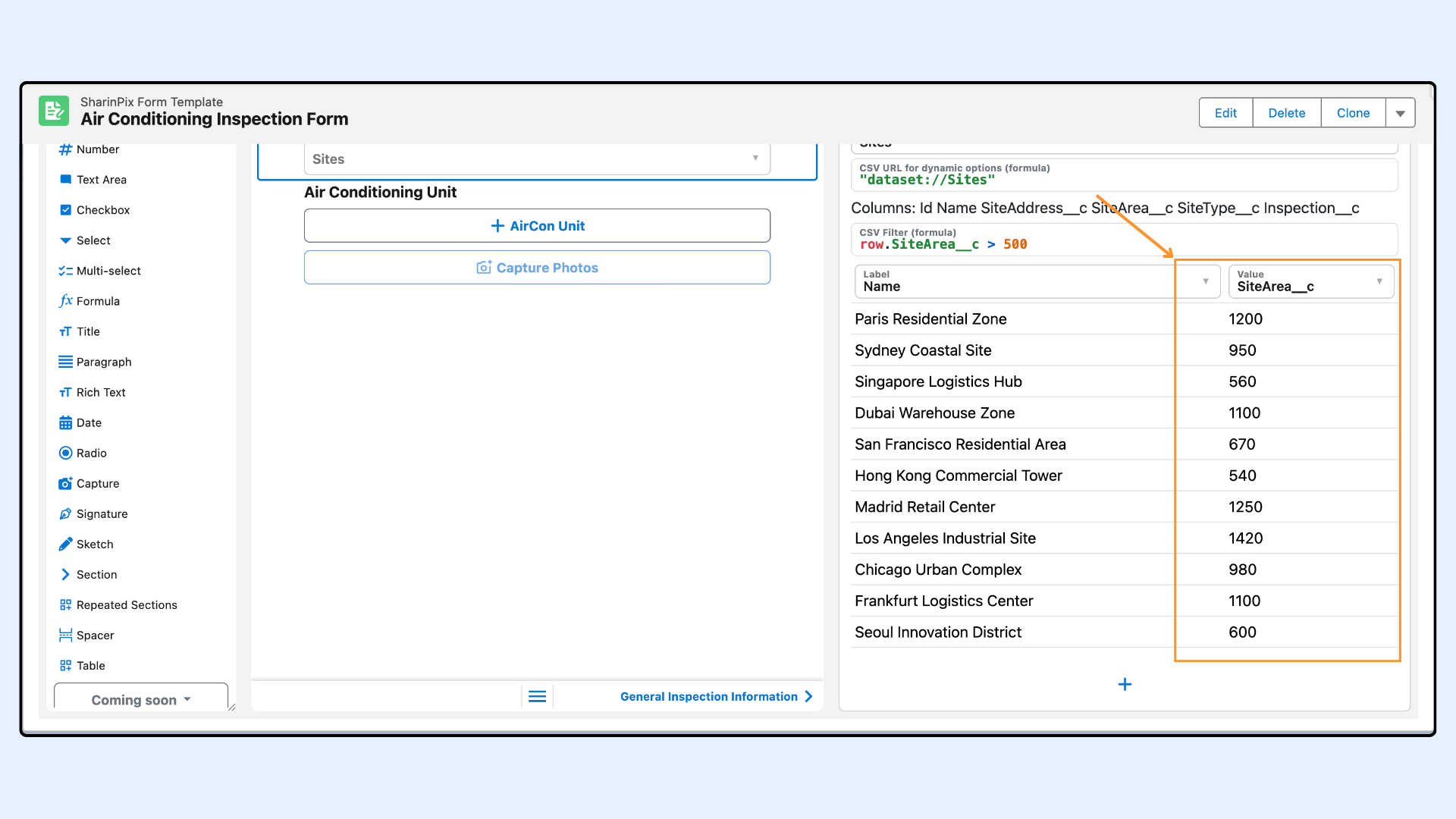
In this example, the filter keeps only Site records where `SiteArea__c > 500`.
For example:
* `row.SiteArea__c > 500` keeps only large sites
* `row.SiteType__c == "Industrial"` keeps only industrial sites
* `row.Inspection__c == inspection_id` keeps only sites linked to the current Inspection
The available options now include only records where `SiteArea__c` is greater than `500`.
#### Remove duplicate values
If the dataset contains repeated values in the same column, the question can show duplicate options.
Enable `Remove duplicate values from CSV` to keep only one option for each repeated value.
### Prefill Repeated Sections with a Record Dataset
You can use **Pull data from a Salesforce record** in the **Default** tab of a **Repeated Section** to prefill repeated items when the form opens.
This method is not recommended when you need to prefill a large number of items.
It appends the prefill values to the URL, which can make the URL too long.
For larger record sets, use a dataset instead. For the Salesforce-based approach, see [Create and Update Related Salesforce Records with SharinPix Form](/forms/salesforce-integration/create-and-update-related-salesforce-records-with-sharinpix-form.md#configuring-form-repeated-sections-to-pull-child-records).
#### Set up dataset mapping
{% hint style="info" %}
Create the Record Dataset from Salesforce data before configuring the mapping in the Form Builder.
Refer to [How to Create a Record Dataset](/forms/salesforce-integration/record-datasets.md#how-to-create-a-record-dataset).
{% endhint %}
Enable **Prefill repeated sections from a dataset**.
Select one of the available datasets, then configure the mapping and [filtering](#filter-available-rows).
Use the mapping to match repeated section questions to dataset columns. For example, map `Site Address` to `SiteAddress__c`.
### Demo: Select Employees based on their Company
{% hint style="warning" %}
**Prerequisite for this example:**
* Create a **Companies** dataset.
* Create an **Employees** dataset with a `Company__c` lookup field.
{% endhint %}
#### Step 1: Set up the company Select question
* Add a **Select** question with the API name `company`.
* Select the **Companies** dataset.
* Use `Name`, or another readable field, as the label.
* Use `Id` as the value. This value will be used to filter the **Employees** dataset.
#### Step 2: Set up the employees' Multi-Select question
* Add a **Multi-Select** question.
* Select the **Employees** dataset.
* Use [Filter available rows](#filter-available-rows) to keep only employees linked to the selected company.
In this example, use:
`row.Company__c == company.value`
{% hint style="success" %}
**Tip:**\
\
If you want to get the company ID from the form launch URL, or from a Salesforce field on the record where the form is launched, configure a hidden text question with [Prefill](/forms/form-elements/form-features-default-or-prefill-values.md). You can then reference that hidden field in the filter instead.
{% endhint %}
---
# Agent Instructions
This documentation is published with GitBook. GitBook is the documentation platform designed so that both humans and AI agents can read, navigate, and reason over technical content effectively. Learn more at gitbook.com.
## Querying This Documentation
If you need additional information that is not directly available in this page, you can query the documentation by asking a question.
Perform an HTTP GET request on the following URL with the `ask` and `goal` query parameters:
```
GET https://docs.sharinpix.com/forms/form-elements/form-features-use-dynamic-salesforce-data-with-record-datasets.md?ask=&goal=
```
`ask` is the immediate question: it should be specific, self-contained, and written in natural language.
`goal` is what the user is ultimately trying to achieve, the reason they need the answer. Sharing it helps GitBook give you a better, more relevant answer. A goal is most helpful when it describes the outcome the user wants rather than restating the question. For example, with `ask=how do I create an API token`, a goal like `automate deployments from our CI pipeline` lets GitBook tailor the answer to that use case.
The response will contain a direct answer to the question and relevant excerpts and sources from the documentation.
Use this mechanism when the answer is not explicitly present in the current page, you need clarification or additional context, or you want to retrieve related documentation sections.
.png?alt=media&token=8d714004-dd62-4627-abb5-5f4f3976f645)




.png?alt=media&token=106ea48e-8793-4626-afba-84ca34a8c357)
.png?alt=media&token=42854db1-ac1f-4891-9ca6-5091be8295de)