# Record Datasets

## &#x20;Overview

A **record dataset** is a set of Salesforce records made available to SharinPix.

It is stored on the SharinPix Amazon S3 bucket or on your own S3 bucket, if configured.

Record datasets can be used in integrations with SharinPix features. For example, they can be used in [SharinPix Forms to populate a dynamic picklist](https://docs.sharinpix.com/forms/form-elements/form-features-use-dynamic-salesforce-data-with-record-datasets).

To keep the data up to date, datasets can be refreshed periodically to reflect changes in Salesforce, such as record updates or deletions. This is typically done through automation, such as a scheduled Flow or a record-triggered Flow.

This article explains how to create a record dataset.

It covers:

1. [How to Create a Record Dataset](#how-to-create-a-record-dataset)
   1. [Flow Input Parameters](#flow-input-parameters)
   2. [Flow Configuration Guide](#flow-configuration-guide)
      1. [Step 1: Configure a Schedule-Triggered Flow](#step-1-configure-a-schedule-triggered-flow)
      2. [Step 2: Retrieve the list of Site records](#step-2-retrieve-the-list-of-site-records)
      3. [Step 3: Add a Wait Element](#step-3-add-a-wait-element)
      4. [Step 4: Add the Action to Export the Dataset](#step-4-add-the-action-to-export-the-dataset)

{% hint style="warning" %}
**Prerequisites**

Before configuring this automation, ensure the following:

* You have the latest **SharinPix Package** installed. This feature requires version **1.394** or later. You can follow [this guide](https://docs.sharinpix.com/faqs/how-to-update-sharinpix-package-from-the-appexchange) to upgrade your SharinPix Managed Package.
* Users must have the **SharinPix Forms Admin** permission set. For more information, see [SharinPix Permission Sets](https://docs.sharinpix.com/documentation/access-and-security/sharinpix-permission-sets).
  {% endhint %}

## How to Create a Record Dataset

In Salesforce, a record dataset can be created and updated automatically using the `CsvExportAutomation` Apex action.

This action accepts two inputs:

* a list of Salesforce records
* a dataset name

It uses the provided records to generate the dataset, creates or updates the corresponding dataset in SharinPix, and uploads it automatically.

It is intended for use in Flows that collect Salesforce records and send them to SharinPix as a record dataset.

### Flow Input Parameters

Below are the inputs required when using the `CsvExportAutomation` invocable action in a Salesforce Flow. These values are required to export the dataset successfully.

<table data-header-hidden><thead><tr><th width="176.8125"></th><th width="389.7109375"></th><th></th></tr></thead><tbody><tr><td><strong>Parameter</strong></td><td><strong>Description</strong></td><td><strong>Required/Optional</strong></td></tr><tr><td>records</td><td>List of Salesforce records to export.</td><td>Required</td></tr><tr><td>datasetName</td><td>Name of the dataset to create or update. Must be 3 to 20 characters long and may contain letters, numbers, and underscores only. Spaces are not allowed.</td><td>Required</td></tr></tbody></table>

### Flow Configuration Guide

This example uses the `CsvExportAutomation` Apex action in a scheduled Flow. The Flow retrieves a list of `Site__c` records with selected fields every week and updates the corresponding dataset in SharinPix. If the dataset does not exist yet, it is created the first time the Flow runs.

#### Step 1: Configure a Schedule-Triggered Flow

1. Go to **Setup** > **Flows** > Click **New Flow**
2. Choose **Scheduled Automations** > **Scheduled-Triggered Flow**

<figure><img src="https://2647402409-files.gitbook.io/~/files/v0/b/gitbook-x-prod.appspot.com/o/spaces%2FrRD1Xcn9HtKcyfQ9Ghyk%2Fuploads%2FFtCq4KLTqEtaUYmQ1FNM%2F2.png?alt=media&#x26;token=f98cf772-29d9-459e-b5d4-037bc5dde0ae" alt=""><figcaption></figcaption></figure>

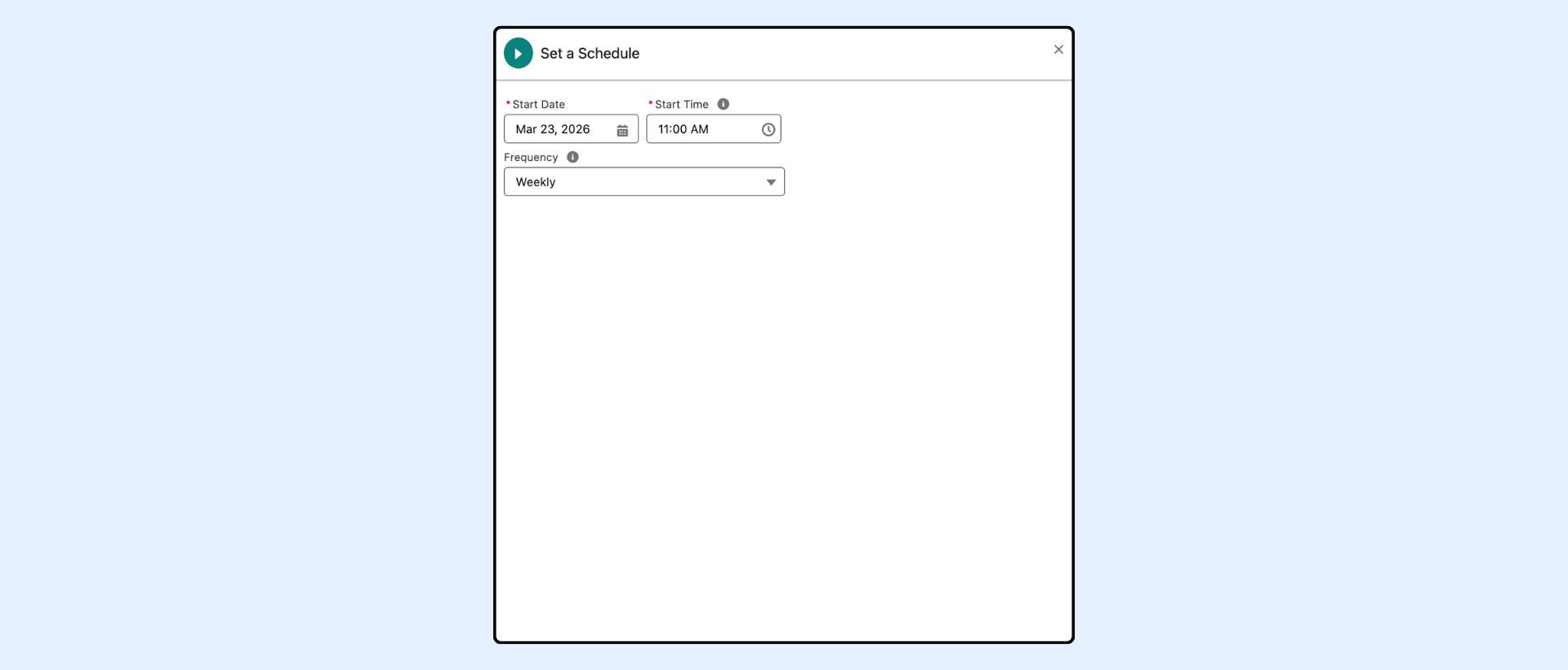
Set the start date, time, and frequency at which you want the Flow to run. For this example, the Flow is scheduled to run on a **weekly** basis.

<figure><img src="https://2647402409-files.gitbook.io/~/files/v0/b/gitbook-x-prod.appspot.com/o/spaces%2FrRD1Xcn9HtKcyfQ9Ghyk%2Fuploads%2FR0mThRbIWTNIFpUjCFoH%2F3.png?alt=media&#x26;token=2a29223f-4a72-4b1e-82b0-2854a1eb16c9" alt=""><figcaption></figcaption></figure>

#### Step 2: Retrieve the list of Site records

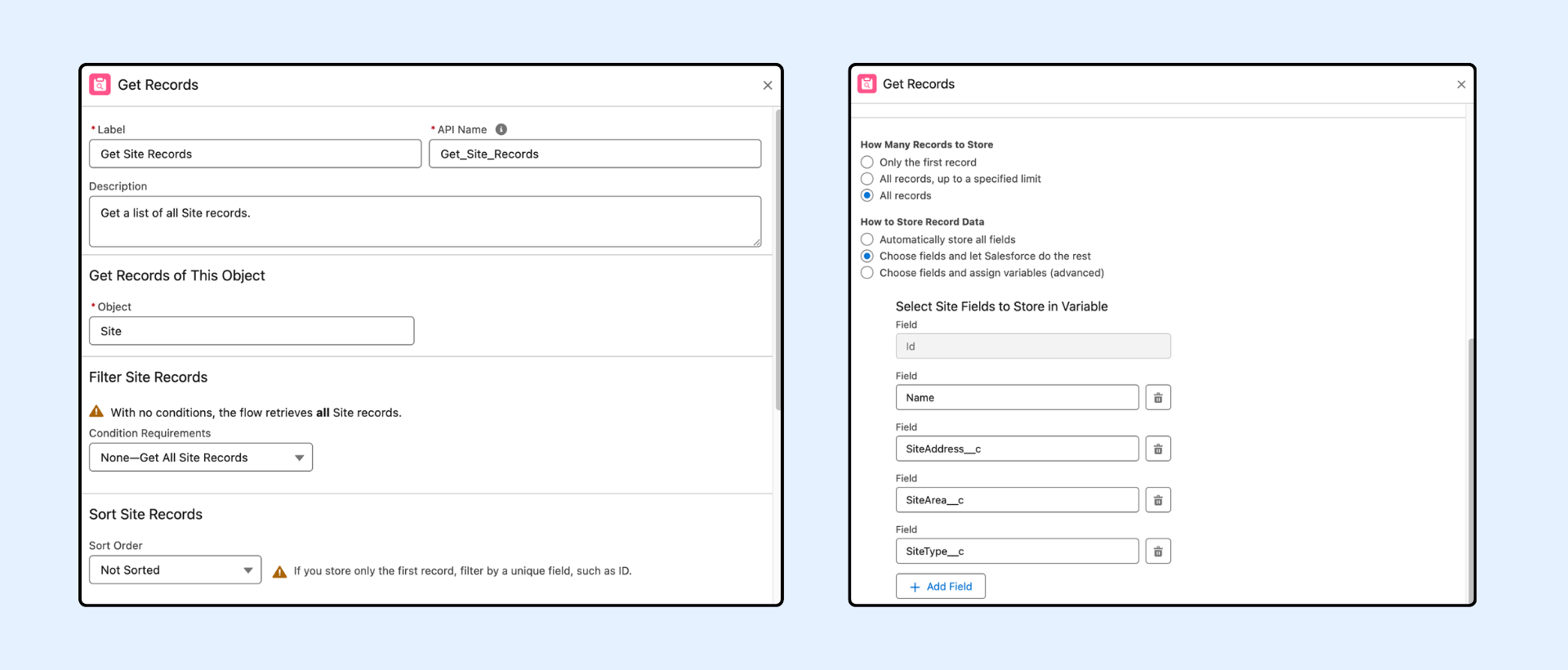
Add a **Get Records** element to retrieve the records from the custom `Site__c` object that you want to include in the dataset. You can filter the records in any way that fits your use case.

For our example, we will configure it as follows:

| Setting                   | Example Value                                                            |
| ------------------------- | ------------------------------------------------------------------------ |
| Label                     | Get Site Records                                                         |
| API Name                  | Get\_Site\_Records                                                       |
| Object                    | Site\_\_c                                                                |
| Filter Conditions         | None — retrieve all records, or define conditions based on your use case |
| How Many Records to Store | All records                                                              |
| How to Store Record Data  | Choose fields and let Salesforce do the rest                             |
| Fields to Store           | `Name`, `SiteAddress__c`, `SiteArea__c`, `SiteType__c`                   |

<figure><img src="https://2647402409-files.gitbook.io/~/files/v0/b/gitbook-x-prod.appspot.com/o/spaces%2FrRD1Xcn9HtKcyfQ9Ghyk%2Fuploads%2FVlIYy6ClchbBMromTrXM%2F4.png?alt=media&#x26;token=454a7adc-6d44-493f-a757-95a42f8002c2" alt=""><figcaption></figcaption></figure>

{% hint style="danger" %}
**Warning**

This feature is currently available for **online** usage only.

It is also subject to Salesforce limits. The maximum number of records that can be exported in a single execution depends on how many fields are retrieved and how much data is included in each record.

As a reference, exporting up to **3,000** records is supported when using all fields. In some cases, more records can be exported if fewer fields are selected.

To optimize performance, we strongly recommend selecting only the fields required for the export rather than all available fields.
{% endhint %}

#### Step 3: Add a Wait Element

Add a **Wait for Amount of Time** element before the Apex action when required, as schedule-triggered Flows may not support callouts directly without it.

Configure the element as follows:

| Parameter                            | Example Value   |
| ------------------------------------ | --------------- |
| **Label**                            | Wait 1 Minute   |
| **API Name**                         | wait            |
| **Amount of Time**                   | Set to 1 Minute |
| **Resume at a specific time of day** | Leave unchecked |

This ensures the Flow pauses briefly before executing the `CsvExportAutomation` Apex action, allowing callouts to be performed successfully.

For more details, refer to the Salesforce documentation on [Schedule-Triggered Flow Considerations](https://help.salesforce.com/s/articleView?id=platform.flow_considerations_trigger_schedule.htm\&type=5).

<figure><img src="https://2647402409-files.gitbook.io/~/files/v0/b/gitbook-x-prod.appspot.com/o/spaces%2FrRD1Xcn9HtKcyfQ9Ghyk%2Fuploads%2FRaHQ4HnKI6Tf2zwdJzix%2Fexport%20csv%20automation%20(1).png?alt=media&#x26;token=48beb00a-bcc2-4e0f-96cd-5acfb270895a" alt=""><figcaption></figcaption></figure>

#### Step 4: Add the Action to Export the Dataset

1. Add an **Action** element
2. Search for `Sharinpix__CsvExportAutomation`
3. In the action modal for `Sharinpix__CsvExportAutomation`, populate the fields as shown below:

| Field                          | Example Value                 |
| ------------------------------ | ----------------------------- |
| Object for "Records" (input)\* | `Site__c`                     |
| Records                        | Sites from `Get Site records` |
| Records Dataset Name           | Sites                         |

\*The object selected for **Object for "Records"** must match the object used in the **Get Records** element.

<figure><img src="https://2647402409-files.gitbook.io/~/files/v0/b/gitbook-x-prod.appspot.com/o/spaces%2FrRD1Xcn9HtKcyfQ9Ghyk%2Fuploads%2FbJoAmbQ8hu3r5FOkmGMx%2F5.png?alt=media&#x26;token=b2d05eeb-10c7-4ec1-9c7a-cd75b68bcc46" alt=""><figcaption></figcaption></figure>

Click **Save** and **Activate** the Flow.

<figure><img src="https://2647402409-files.gitbook.io/~/files/v0/b/gitbook-x-prod.appspot.com/o/spaces%2FrRD1Xcn9HtKcyfQ9Ghyk%2Fuploads%2FfSUAHfCz4H6aaznVDplT%2Fexport%20csv%20automation%20(2).png?alt=media&#x26;token=15a2d521-7a60-466e-bbd1-8e4b680bc280" alt=""><figcaption></figcaption></figure>

{% hint style="warning" %}
**Important**

If you receive an error indicating that the remote endpoint is not authorized, it means the required **Remote Site Setting** for the dataset upload endpoint has not yet been created in your Salesforce organization.

You may receive an error message such as:

`An Apex error occurred: sharinpix.SharinPixException: Unauthorized endpoint, please check Setup->Security->Remote site settings. endpoint =`` `**`<url>`**

To resolve this, create a **Remote Site Setting** in Salesforce for the endpoint URL returned in the error message, then execute the Flow again. This configuration is only required once per organization.
{% endhint %}