Automatic Album Token Generation using a Flow (Admin-Oriented)
Overview
This article explains how the invocable Apex GenerateAlbumTokenAutomation generates an online token to access a SharinPix Album through a Salesforce Flow.
It covers the following:
Flow Configuration Guide
Step 4: Add Update Element
Step 5: Save and Activate the Flow
Prerequisites
Before configuring this automation, ensure the following:
You have the latest SharinPix Package installed. This feature requires version 1.346 or higher. You can follow this guide to upgrade your SharinPix Managed Package to the newest version.
Input Parameters
Below are the inputs required when using the GenerateAlbumTokenAutomation invocable method in a Salesforce Flow. These parameters must be provided to successfully generate an album token.
recordId
The Salesforce Record ID (e.g. Work Order ID) to generate Album token for.
Required
permissionId
Name or ID of the SharinPix Permission object (of type Album) to be used for token generation. If no SharinPix Permission is specified, the user will receive an album token with basic abilities.
Optional
expiry
Number of days after which the token will expire.
Optional
Flow Configuration Guide
The following flow setup uses a Record-Triggered Flow to automatically generate a SharinPix token when a record is created or updated. The Work Order object is used here as an example, but you can apply the same automation to any Salesforce standard or custom object, depending on where you want to generate the token.
Step 1: Prepare Custom Field To Store Token
A field is needed on the Work Order object to store the generated token. To do so, create a Text Area (Long) field to store the entire token.
Go to Setup > Object Manager > Work Order.
Click on Fields & Relationships > New.
Select Text Area (Long) as the field type.
Name the field (e.g.,
SharinPix Album Token) and set the length to the maximum value (131,072characters).Save the field.
This field will store the full token returned by the flow.

Step 2: Configure a Record-Triggered Flow
Go to Setup > Flows > Click New Flow
Choose Start From Scratch and click Next
Choose Record-Triggered Flow and click Create
Set the following values:
Object
Work Order*
Trigger
A record is created or updated
Set Entry Conditions
Status Field Equals to In Progress
Optimize the Flow for
Actions and Related Records
Add Asynchronous Path
On
*Please note that the Object Setting can be configured as desired.


Step 3: Add the Action to Generate the Album Token
For this example, we will create a SharinPix Permission of type Album with the following abilities:

On your flow, add an Action element
Search for
Sharinpix__GenerateAlbumTokenAutomationOn the Action modal for
Sharinpix__GenerateAlbumTokenAutomation, populate the fields as indicated below:
Record ID
Triggering WorkOrder > Work Order ID
Expiry in Days
10
SharinPix Permission Name or ID
Album Permission*
*Note that if no SharinPix Permission is specified, the user will receive an album token with basic abilities.
Warning
If the expiry value is not specified, the token will default to 30 days. If the token should not expire, the expiry value should be set to zero (
0). This field only accepts whole numbers; decimal values are not supported and will result in an error.

Step 4: Add Update Element
This step is used to store the token generated by the Apex action into the custom field SharinPix_Album_Token__c you created on the Work Order.
Add an Update element
Select Use the Work Order record that triggered the flow
For this example, we will not add any filter conditions.
In the Set Field Values for the Work Order Record section, populate it as indicated below:
SharinPix_Album_Token__c
Outputs from sharinpix__GenerateAlbumTokenAutomation.SharinPix_Album_Token__c

Step 5: Save and Activate the Flow
Save the Flow and click Activate.

Demo
To test the Flow, create or go to a Work Order record and set the Status field to In Progress.
After the flow runs, the generated token will be stored in the SharinPix_Album_Token__c field of the Work Order. You can view it directly from the record detail page to confirm that the token was generated successfully.

To use the generated token to open a SharinPix Album in online mode, you can refer to this article: SharinPix Mobile App: Online Mode.
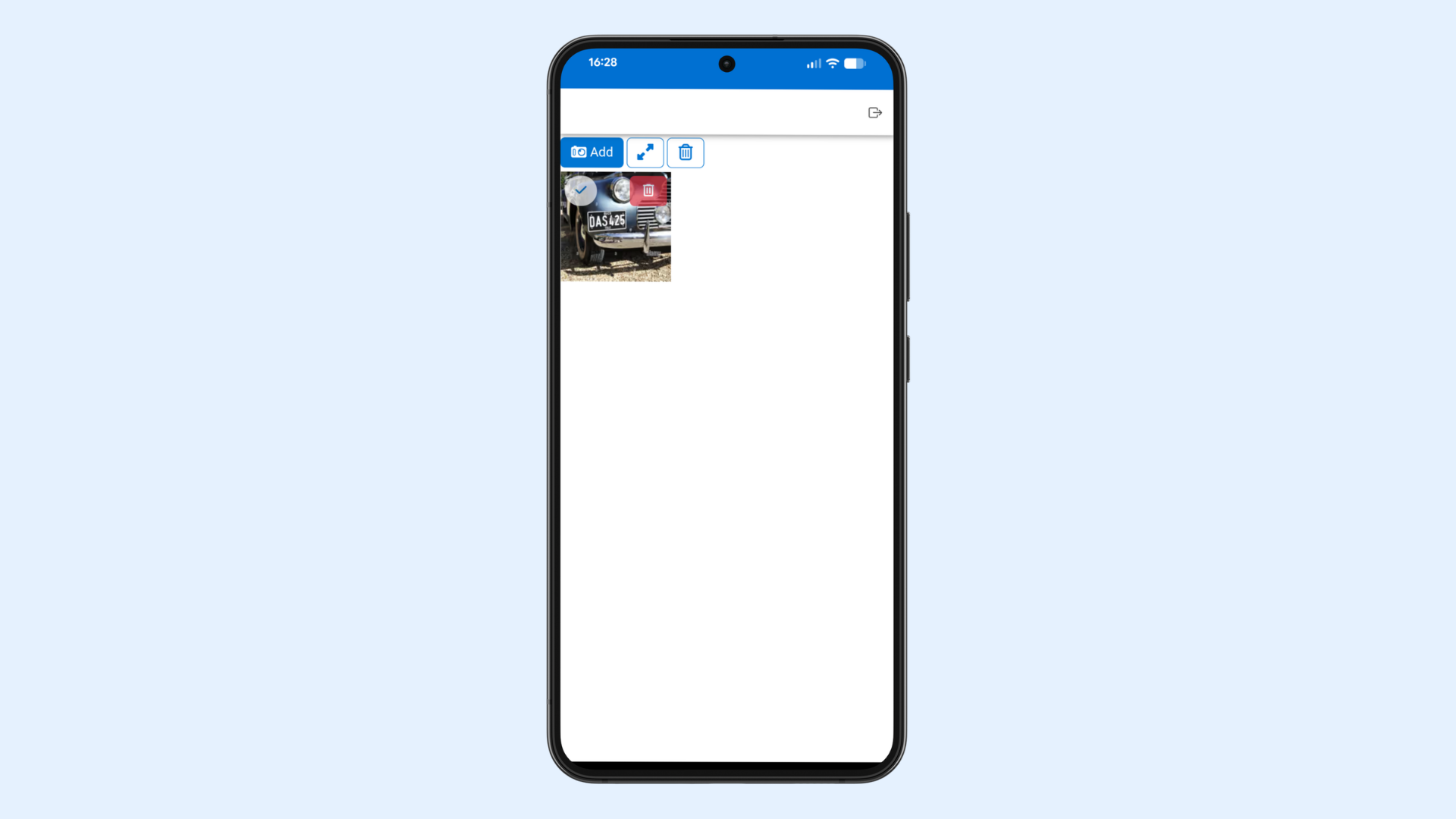
The image below illustrates the SharinPix Album configured with the permissions outlined in the Album Permission above.

Last updated
Was this helpful?